
How to Recover Closed Chrome Tabs Without Losing Task Context
Reopening a closed tab recovers a page, but it does not recover the question you were answering. Restore only what matters, then capture the purpose of the task before another interruption turns the same pages into another mystery.
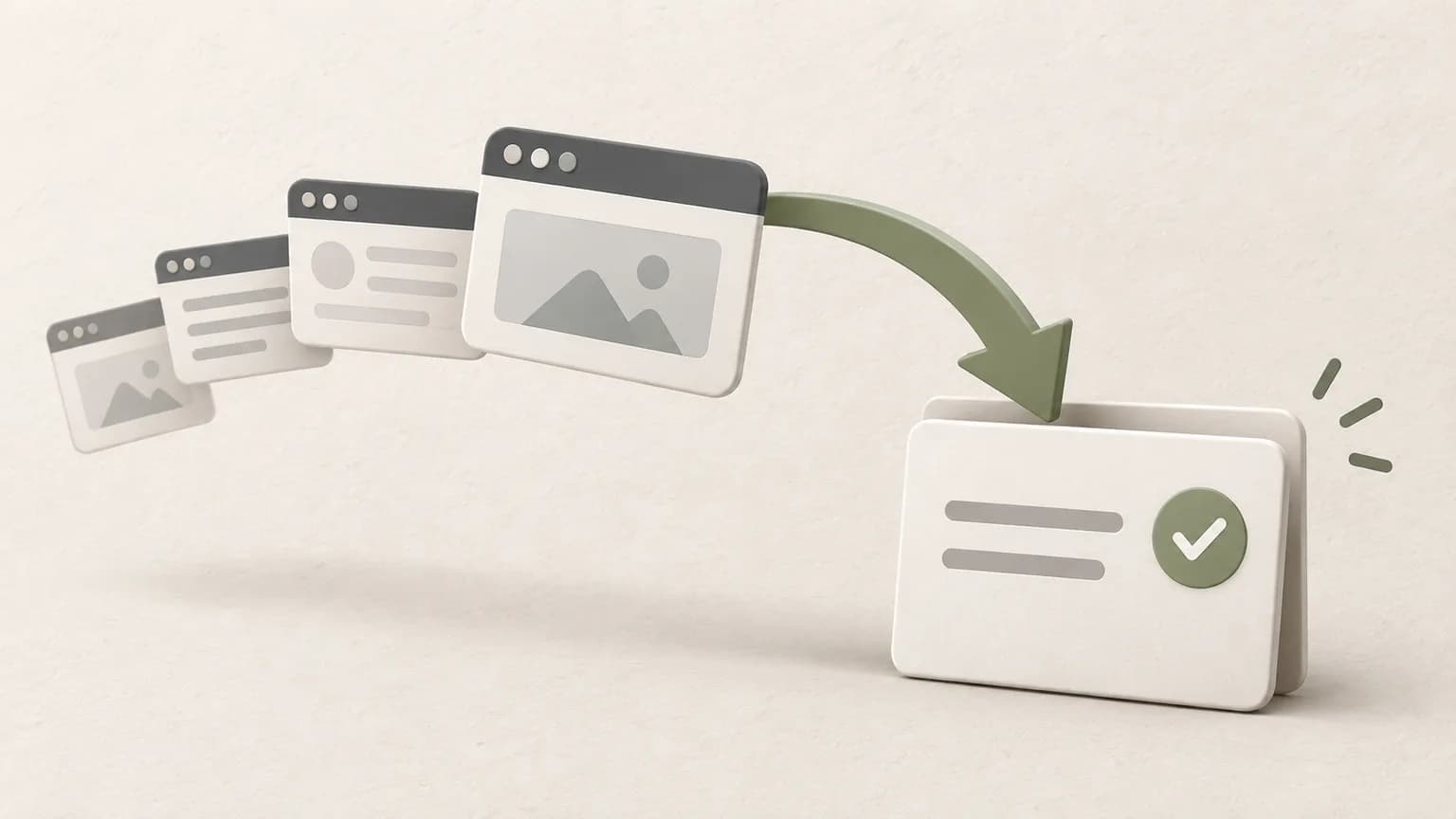
Start with Chrome's built-in recovery
Use the browser's recently closed history or the standard reopen-closed-tab command first. Restore the most recent page, check that it belongs to the interrupted task and continue only as far back as needed. Reopening a long chain blindly can recreate the clutter that caused the problem.
If the browser closed unexpectedly, review the restored window before entering passwords or editing forms. A reopened address does not guarantee that unsaved form fields, application state or an authenticated session survived.
Recover the task, not every page
Write one sentence describing the outcome you were pursuing. Then sort recovered pages into three groups: necessary evidence, optional background and unrelated browsing. Keep the first group, bookmark truly durable references and close the rest after checking them.
This is also the moment to remove duplicate search results. Prefer primary documentation over summaries when both explain the same fact. A shorter source set gives you a more dependable place to restart.
Save a restart point
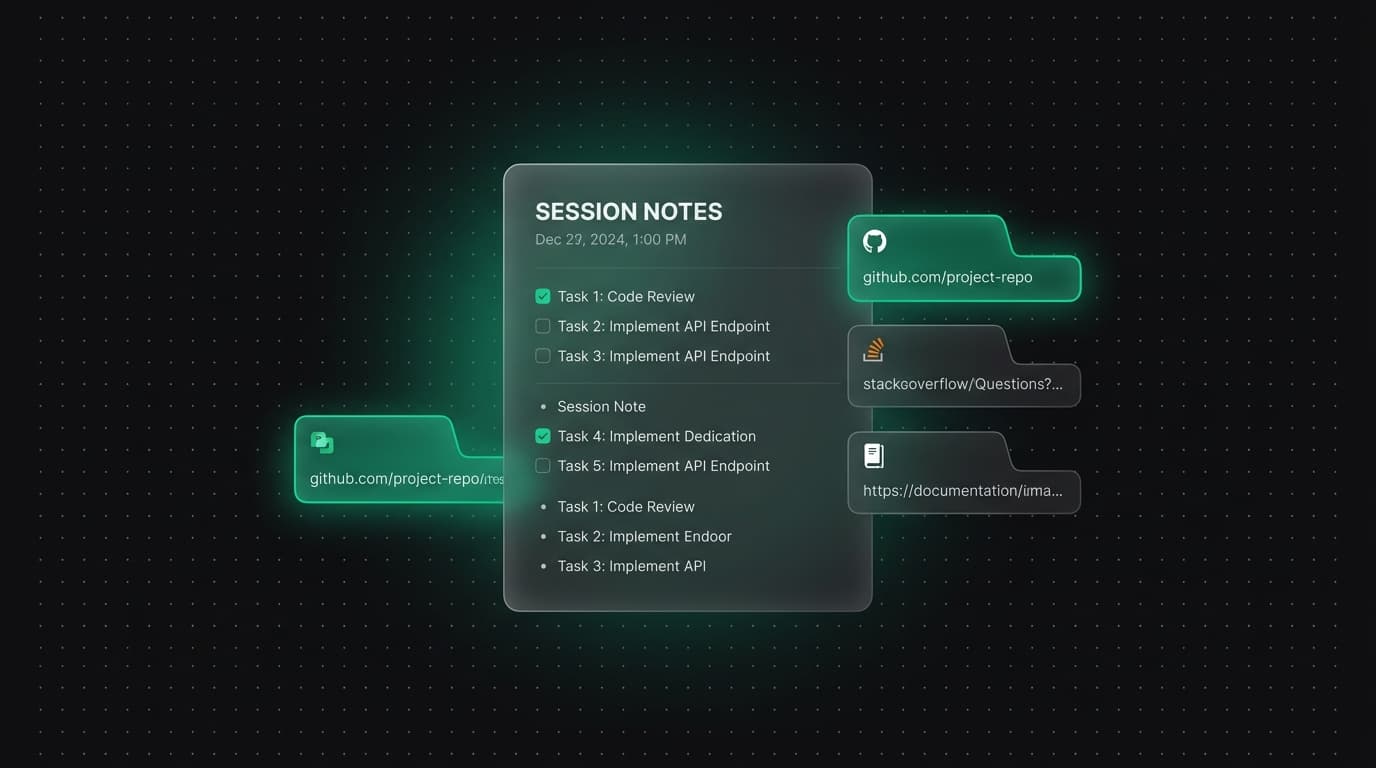
Create a note named after the decision or deliverable. Put the current question at the top, add two or three findings and finish with a visible next action. Save the relevant pages as Sources so the note explains why the links belong together.
Check the save indicator before closing the recovered tabs. If you are using the guest workspace, the note remains in that browser storage. Account synchronization and extension connection are separate states, so verify the one you intend to rely on.
Reopen the saved work safely
Open the note's Sources panel when you return. You can open sources individually without the extension. With a connected, updated extension, Open note + tabs restores the note and supported HTTP or HTTPS sources into a named browser group.
The group is a convenient browser arrangement, while the note and source list are the durable workspace records. A full browser restart may cause a new group to be created. It should not create a duplicate note.
Prevent the same recovery problem
Before a meeting, reboot or context switch, spend thirty seconds writing the next action. Save only the pages needed for that action. This gives you a small checkpoint even when the browser can restore its complete history.
Treat recovery as verification, not proof that everything was preserved. Important text belongs in a saved note or exported file; important source material needs a stable link and, when appropriate, a citation date.
Tabzero: Browser Tab Manager & Notes
Save tab links, keep notes beside your sources, and return to what matters. Tabzero is in development preview; AI Notes remains planned.
Related guides
How to Save Open Tabs Before Restarting Chrome
Save the tabs that matter before a Chrome restart, record the task context, and verify what can and cannot be restored afterward.
Browser Session Backup Checklist: What Is Actually Saved?
Check URLs, note content, exports, account sync and live page state before calling a browser session safely backed up.
Tab Groups vs Bookmarks vs Session Managers: Which Should You Use?
Compare Chrome tab groups, bookmarks and session managers by lifespan, context, recovery and privacy so each browsing task goes to the right place.