
Reopen a note and its source tabs
Choose ordinary source tabs or restore the note and references as a named browser group.
Before you start
- A note with saved HTTP or HTTPS sources.
- An updated, connected extension for native browser groups.
1. Open Sources and check the connection
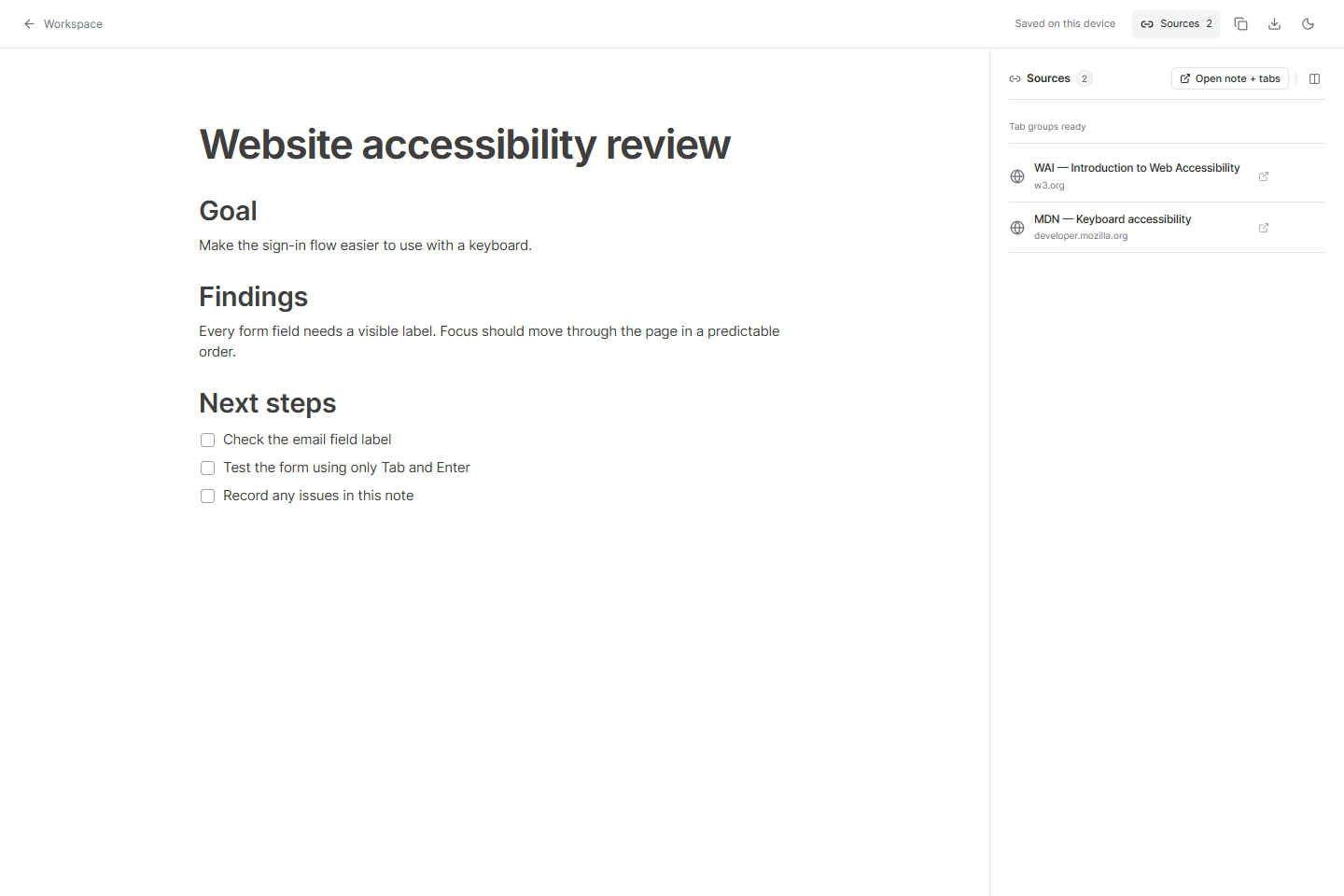
Open the note in the dashboard or its dedicated tab, then select Sources. Read the connection status above the source list.
Tab groups ready means the extension supports the group action. Without that capability, the panel offers Open sources for ordinary tabs and Enable tab groups for setup guidance.
Open full-size screenshot ↗
2. Restore a named group
Select Open note + tabs. The extension opens the note first in a grey browser group named after the note, followed by the saved source pages.
Within the same browser session, using the action again reuses the tracked group and adds missing sources. If you closed only the note tab, it can return to the existing source group. Pages outside that group are not moved.
3. Open sources without an extension
Select Open sources to open ordinary browser tabs, or click a source title to open one page. Without the extension, this does not create a native group.
If the browser blocks extra pop-ups, the panel reports how many pages opened and how many remain. Allow pop-ups for the workspace site and retry, or open each link individually. Retrying in the same panel skips sources already opened by that action.
4. Know what is restored
The source list stores links, not website snapshots or unsaved form entries. A website can require you to sign in again or display updated content.
Group tracking belongs to the browser session. After a browser restart, a restore may create a new group. Your saved note and source list are separate from this temporary browser arrangement.
You’re done when…
The note and its saved reference pages are ready for your next work session.
If something looks different
Why is Open note + tabs missing?
Expand Enable tab groups. Enable or update the Tabzero extension, allow access to the workspace site, reload the page and choose Check connection.
The action returned an error after opening some tabs.
Inspect the browser tabs before retrying. Keep the note and saved sources intact. Do not assume an error means nothing opened.
Screenshots are captured from the real application using an isolated sample workspace. No personal account data is shown. Extension availability · Troubleshooting