
Fix common problems
Identify connection, saving and access problems without creating duplicate notes.
Before you start
- Keep the affected note open if it contains unsaved work.
1. Start with the visible status
Check the save indicator and Sources connection status. Saving to an account, opening a saved link and creating a browser group are separate operations. A working note editor does not by itself confirm the extension connection.
Preserve your current text before clearing browser data or switching accounts. Guest notes depend on browser storage.
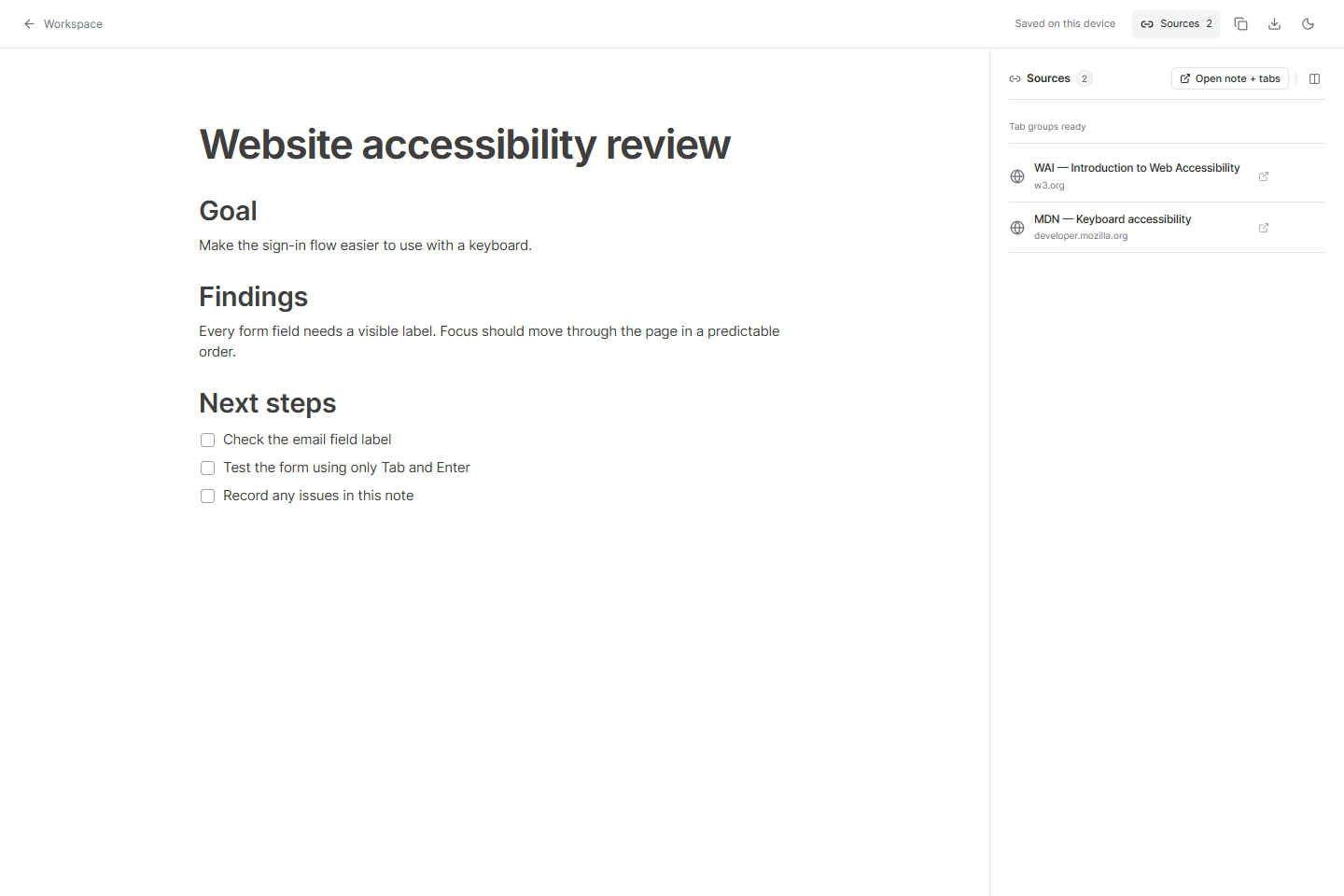
Open full-size screenshot ↗
2. Recover a missing connection
In Sources, expand Enable tab groups. Check the browser’s Extensions page for Tabzero, enable it and allow it to run on the workspace site.
After updating or reloading the extension, reload the workspace page and select Check connection. Extension update needed for groups means the extension was detected but does not advertise the required grouping capability.
3. Handle saving problems
Saved locally while syncing means an account update has not yet been confirmed remotely. Check connectivity and use the retry action when offered.
For a conflict, review the recovery option shown by the workspace. Keep both versions preserves alternatives for comparison rather than silently choosing one. If storage is full or unavailable, copy your latest text elsewhere before closing the page.
4. Check missing notes and prepare a useful report
For Note not available, confirm the account or original guest profile, then return to the workspace and search for the note. A direct URL does not grant access or recreate a deleted document.
If the problem continues, record the action you took, the exact status text, your browser, whether the extension is connected, and whether the browser was restarted. Remove personal note content, account details and private URLs before sharing screenshots.
You’re done when…
You know which state to check and the next safe action to take.
If something looks different
Should I clear browser data to fix sync?
Do not start there. Copy or export important notes first. Clearing site storage can remove guest notes and local changes that have not synchronized.
How do I recover notes from the retired New Tab notepad?
If the extension offers Recover previous notes, download the backup. In workspace Settings choose Import previous New Tab notes and review the destination before importing. Matching IDs are skipped on retry; preserve your original backup.
Screenshots are captured from the real application using an isolated sample workspace. No personal account data is shown. Extension availability · Troubleshooting