
Save browser tabs into a note
Select reference pages, choose a destination, and check the saved sources before closing tabs.
Before you start
- The Tabzero extension installed and enabled in a supported browser.
- The same account connected in the Web App and extension.
- The reference tabs open in the current browser window.
1. Open Tab manager
Open the Tabzero extension popup and choose Tab manager. Use This window so the tabs you are saving belong to the current window.
Search by title or URL if the list is long. Select only the reference pages for this task. Avoid unrelated private account pages or links you do not need.
2. Choose the destination before saving
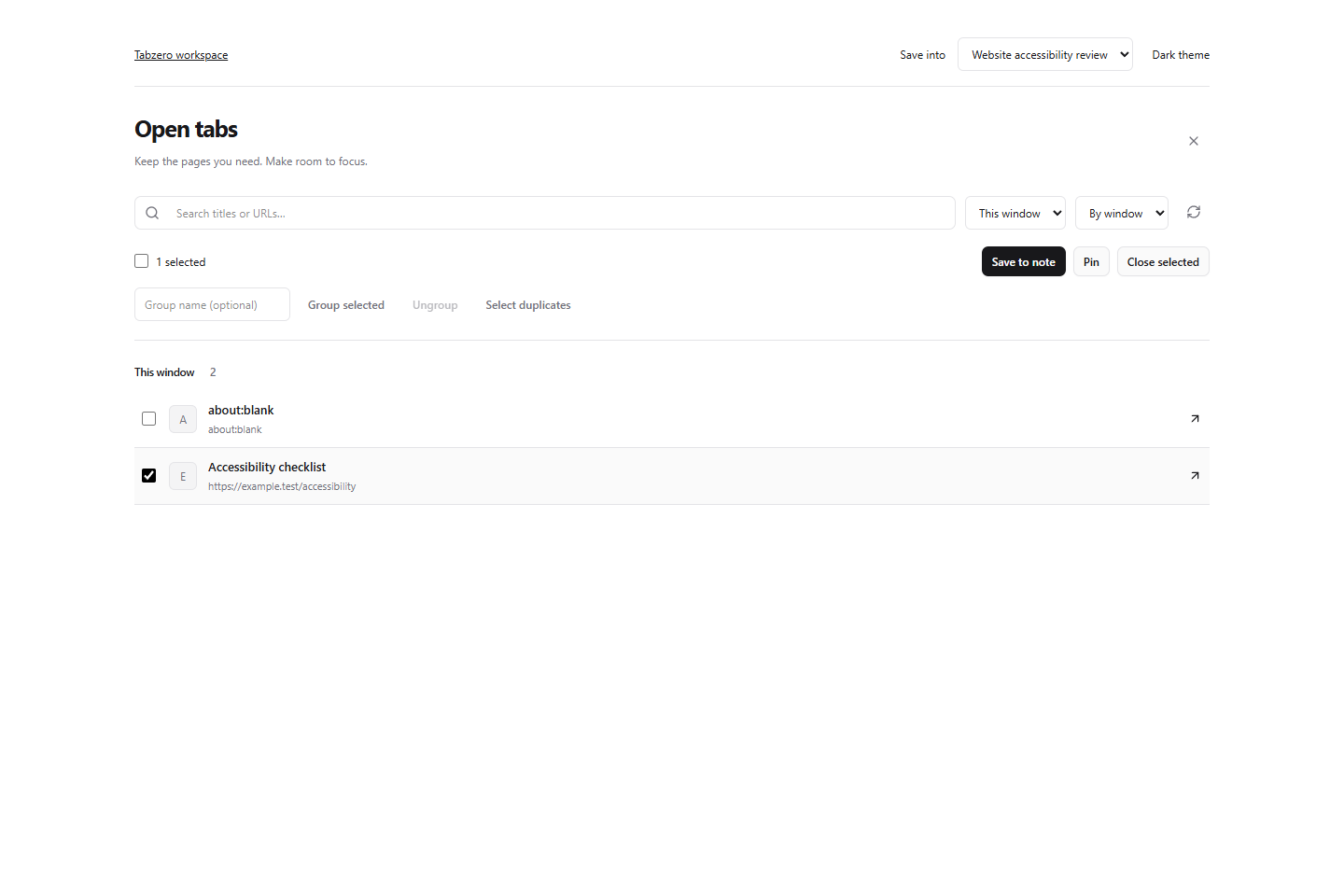
Use Save into at the top to select an existing note. Select New workspace note only when you want a separate document.
Tick the checkbox beside each source. The selected count lets you check the scope before continuing. The screenshot shows one selected sample page and an existing note as its destination.
Open full-size screenshot ↗
3. Save and verify the result
Select Save to note. When it finishes, follow Open saved note. Open Sources in that note and check that the expected titles and addresses appear.
Save to note keeps the original browser tabs open. Closing tabs is a separate action. Verify the saved note first, especially if a page contains unsaved form data or a draft.
4. Keep the source list useful
Write why a source matters in the note. A saved URL is not a screenshot, an offline copy of the website or a backup of its current form state.
Use Sources to open a page later. To remove a source from the note, hover its row, choose Remove source and confirm. This keeps your note text and the original browser tab unchanged.
You’re done when…
Your existing note contains the selected sources, while the browser tabs remain open.
If something looks different
Why can’t I save tabs from all windows?
Saving into a note is scoped to the current window. Switch to the window containing the sources and use This window before saving.
My note is missing from Save into.
Check that the extension and Web App use the same account. Let notes finish synchronizing, then refresh the list. Do not create a duplicate note to work around an account mismatch.
Screenshots are captured from the real application using an isolated sample workspace. No personal account data is shown. Extension availability · Troubleshooting