
Organize notes into folders
Create folders, move notes, and rename the default folder without losing membership.
Before you start
- An open workspace.
- Completed account sync before renaming or deleting a custom folder.
1. Create a folder for a project
Use New folder beside Notes & projects in the sidebar. Enter a distinct name, such as Research or Archive, and select Create folder.
Keep the structure shallow. A few project folders and descriptive note titles are usually easier to navigate than many nearly identical folders.
2. Move the current note
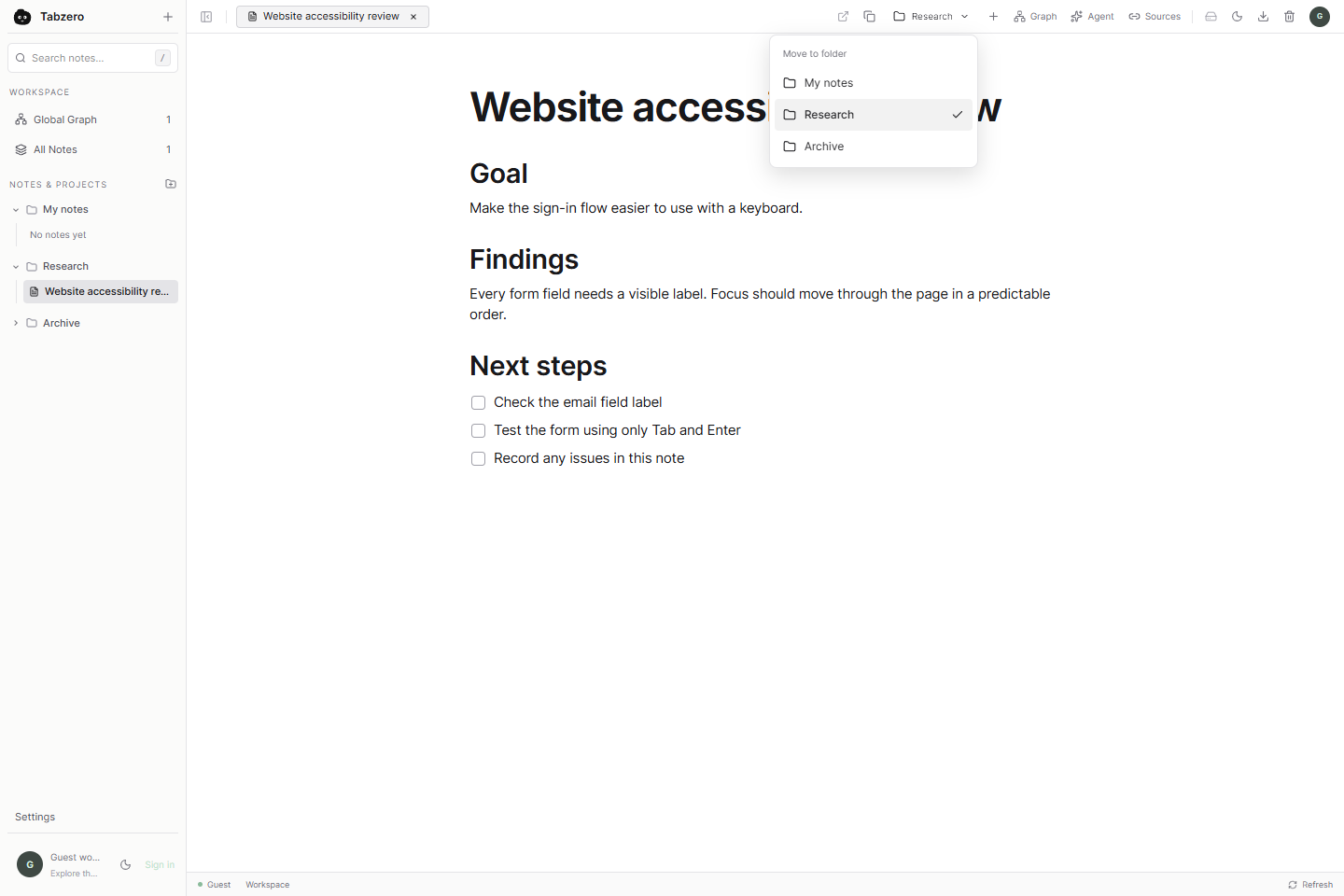
Open a note and select its folder name in the top toolbar. Choose the destination in Move to folder. The note appears under that folder in the sidebar.
Keyboard users can open the picker with an arrow key, navigate options, press Enter to choose, or Escape to close it.
Open full-size screenshot ↗
3. Rename the default or a custom folder
Hover or focus a folder row to reveal the pencil button, then choose Rename folder. Enter the new name and save.
My notes is the default folder. You can rename its displayed label, but it cannot be deleted. Notes already inside it stay in the same default folder. Choose a name that does not belong to another folder.
4. Delete a custom folder safely
Hover a custom folder row and choose Delete folder. Read the confirmation before proceeding. Its notes are kept in the default folder; this action does not delete those notes.
Deleting a note is a separate action. If the account has pending edits or a conflict, finish syncing or resolve the conflict before changing custom folders.
You’re done when…
Notes are organized by project, with their contents and direct URLs intact.
If something looks different
Where are the rename and delete controls?
They appear when you hover the folder row or focus it with the keyboard. The default folder has Rename only.
Will moving a note break its direct URL?
No. The URL uses the note identifier, which is independent of its folder and title.
Screenshots are captured from the real application using an isolated sample workspace. No personal account data is shown. Extension availability · Troubleshooting