
Write in a dedicated note tab
Open the same workspace note by URL, with a focused editor and optional sources.
Before you start
- An existing workspace note.
- Access to its account or original guest workspace.
1. Open the note in a new browser tab
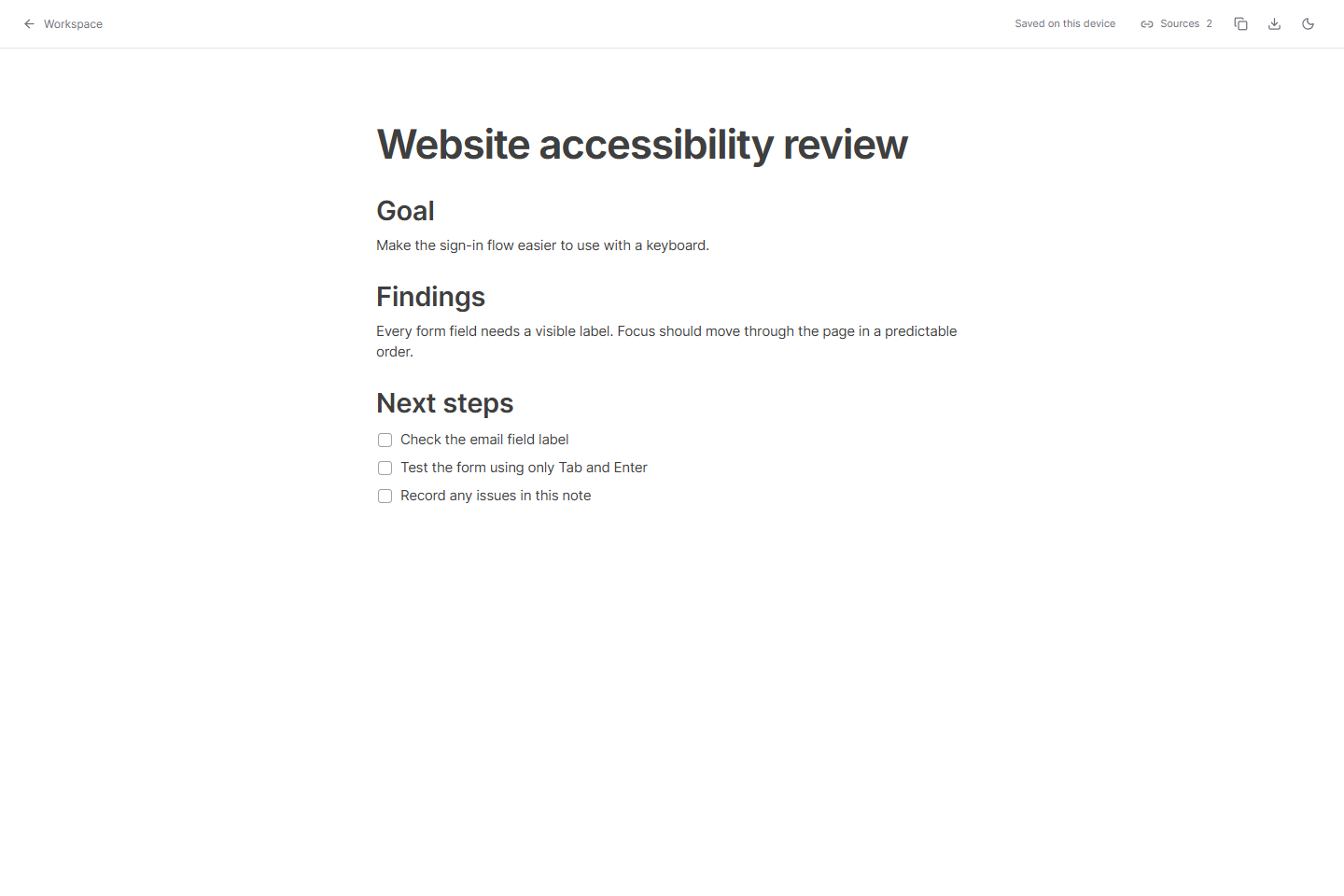
Select the note in the dashboard. In the note toolbar, choose Open note in new tab, the external-link icon.
The new address starts with /note/ followed by the note identifier. This is another view of the same note, not a separate notepad or a copy of the document.
Open full-size screenshot ↗
2. Write and bring references into view
Edit the title and content as usual. Use Sources in the top right to see saved reference pages. Close that panel to return to focused writing.
Changes use the same storage and synchronization as the dashboard. Avoid editing the same passage at the same time in multiple tabs; check save status before switching devices.
3. Bookmark or export
Use Copy note link in the toolbar, or bookmark the browser address. Renaming a note does not change its identifier.
Export Markdown downloads a portable text copy. The file is separate from the workspace note and does not receive future edits. Check its contents before sending it to someone else.
You’re done when…
A direct note URL opens the existing document without the dashboard sidebar.
If something looks different
Can someone else read a copied note link?
The link does not grant public access. An account note requires the same account. A guest link requires the original browser workspace; it does not transfer the note to another person or profile.
Why does the link say Note not available?
Check the account and return to the workspace to confirm the note still exists. A deleted or inaccessible note is not recreated when its old URL is opened.
Screenshots are captured from the real application using an isolated sample workspace. No personal account data is shown. Extension availability · Troubleshooting