
Start with your first note
Find your way around the workspace and create a note you can return to.
Before you start
- A supported web browser.
- An account for account sync, or the guest workspace for a local trial.
1. Choose the right workspace
Open the Web App from Sign in. Use your account to access account notes. A guest workspace is a local trial: its notes are available in the same browser profile and site, not automatically on another device.
The extension is optional for writing notes. To capture browser tabs or create native browser groups, check the Download page for current availability. Tabzero is a development preview; do not assume a public store listing is available.
2. Learn the three main areas
The left sidebar contains search and your folders. The center is the note editor. Sources opens a reference panel on the right when you need it.
Start with the editor and leave secondary panels closed while writing. The example below uses a sample accessibility review, not a personal workspace.
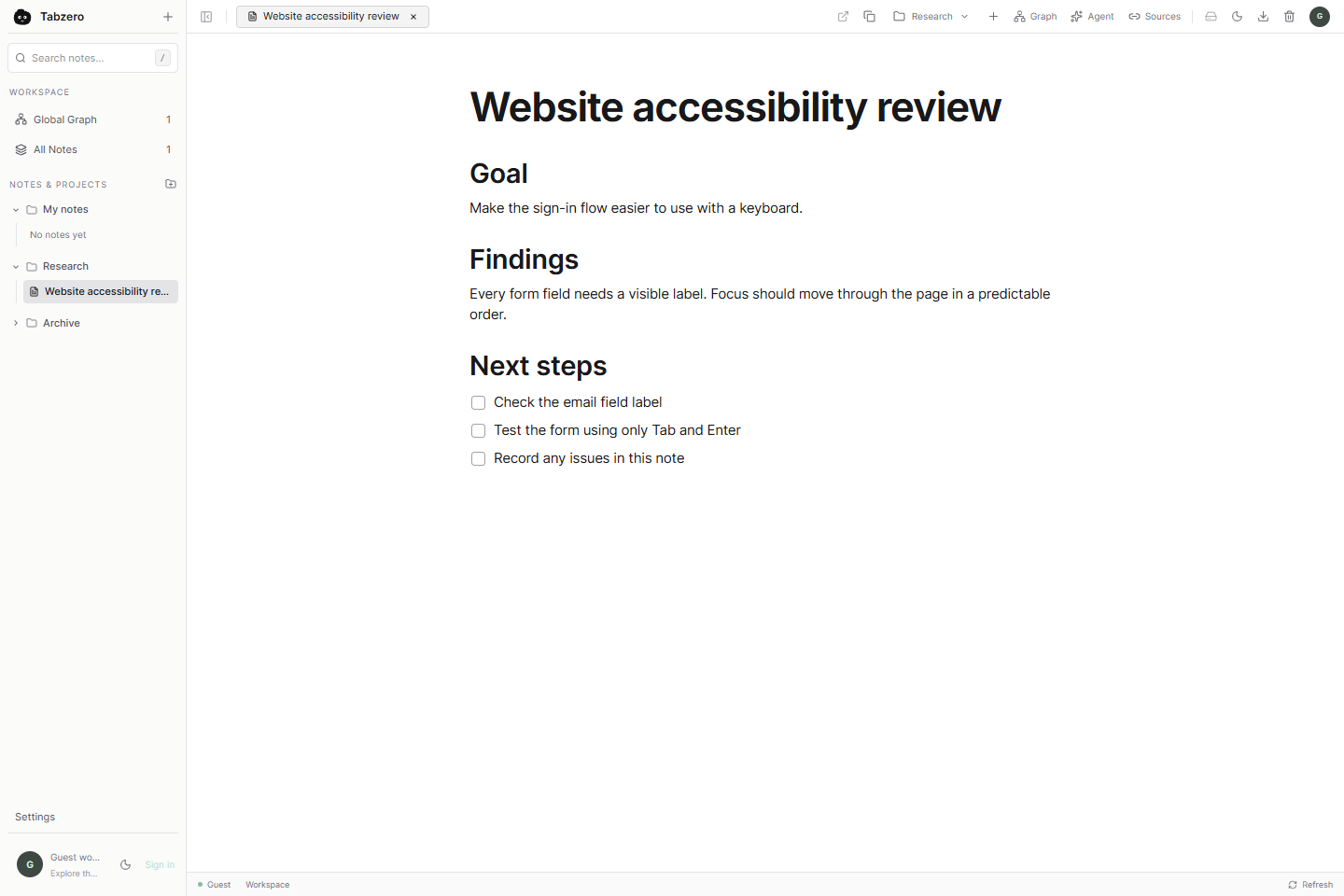
Open full-size screenshot ↗
3. Create and name a note
Select New note, the plus button beside the Tabzero name. Open the new note and use its title field to give it a specific name, such as Website accessibility review.
Write a short goal, a few findings and the next action. You can use headings and checklists in the editor. Choose a title that will make sense when you search for it next week.
4. Check saving and return to the note
Check the save indicator after editing. Guest notes are saved on this device. Account notes can be saved locally while synchronization is still pending; wait for the account save status before relying on another device.
Select another note and return, or reload the page after confirming saving. Use Search notes to find the title or text. If saving reports a problem, keep the page open and copy your latest text before troubleshooting.
You’re done when…
You have a named note with a goal, findings and a next step.
If something looks different
Does Ctrl+T create a Tabzero note?
No. The normal browser New Tab page remains unchanged. Create a note in the workspace, or bookmark a direct note URL.
Can I use it without the extension?
Yes, for writing notes and opening saved web links. Capturing browser tabs and creating browser groups require the extension.
Screenshots are captured from the real application using an isolated sample workspace. No personal account data is shown. Extension availability · Troubleshooting