
How to Save Open Tabs Before Restarting Chrome
A browser restart should not force you to reconstruct a project from memory. Save the pages that support the task, add a restart point, and verify the saved result before closing Chrome.

Decide what deserves to survive the restart
Review the current window before saving it. Keep pages that provide evidence, instructions or unfinished work for one specific task. Exclude email, dashboards with temporary states, duplicate search results and pages you can find again in seconds.
This review makes the restored session smaller and safer. A saved URL can reopen a page, but it does not preserve an unsent form, a live login state or the exact contents of a page at the time you saved it.
Use Chrome recovery for the current window
Chrome provides built-in tab history, saved tab groups and startup behavior. If you rely on Continue where you left off, test it before an important restart and confirm that you are using the expected Chrome profile. Recently closed history is useful for recovery, but it is not a named project archive.
Saved Chrome tab groups can be reopened from the tab groups menu or bookmarks bar when the corresponding Chrome settings are enabled. Give the group a short task name so you can distinguish it from other active work.
Add the missing task context
Create a note named after the outcome, such as Review onboarding analytics, rather than Before restart. Write the question you are answering, the most important finding so far and the next action you will take when you return.
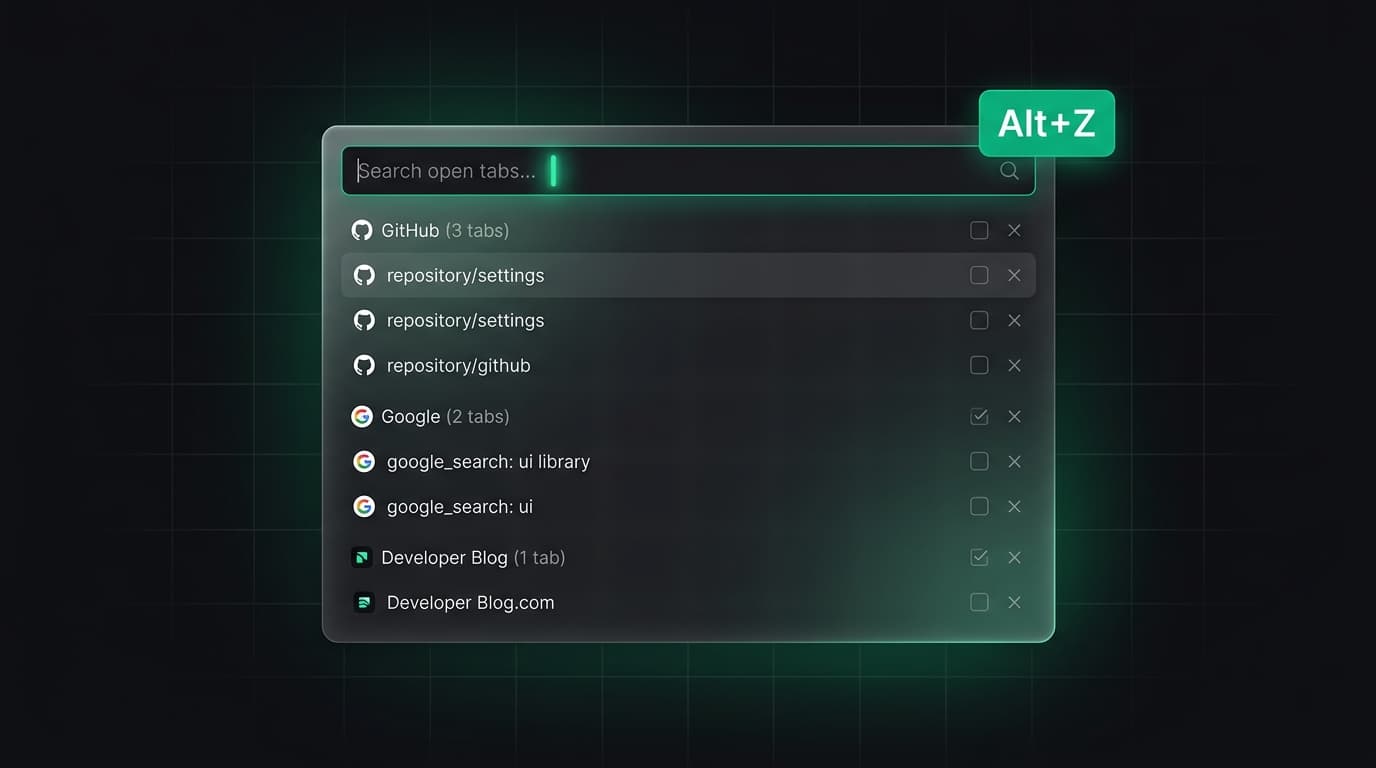
Save the relevant tabs as Sources beside that note. Tabzero keeps the selected browser tabs open after saving, so you can verify the source list before closing anything.
Verify before closing Chrome
Open the saved note and inspect Sources. Check page titles and addresses, wait for the note save status, and export important text when you need a portable copy. Do not treat a success message as proof that a website's live application state was archived.
Account notes and guest notes have different storage boundaries. A guest note remains in that browser workspace. If you need another device, confirm account synchronization rather than assuming the browser restart test proves cross-device access.
Resume with the note first
After restarting, open the note before reopening every source. Read the next action, then open only the pages needed for that step. With the compatible extension connected, Open note + tabs can arrange supported sources in a named browser group.
If a page requires a new login or has changed, update the note rather than repeatedly restoring the old arrangement. The note is the restart point; the browser group is a convenient view of its sources.
Tabzero: Browser Tab Manager & Notes
Save tab links, keep notes beside your sources, and return to what matters. Tabzero is in development preview; AI Notes remains planned.
Related guides
Tab Groups vs Bookmarks vs Session Managers: Which Should You Use?
Compare Chrome tab groups, bookmarks and session managers by lifespan, context, recovery and privacy so each browsing task goes to the right place.
How to Recover Closed Chrome Tabs Without Losing Task Context
Recover recently closed Chrome tabs, then rebuild the task with a concise note and selected sources so the next interruption is easier to handle.
How to Save and Reopen Chrome Tab Sessions with Notes
Save research tabs, record what matters, and reopen the note with its sources in a Chrome tab group using Tabzero.