
How to Save and Reopen Chrome Tab Sessions with Notes
A useful saved session contains more than URLs. It should tell you what you were trying to decide, which pages mattered, and what to do next. Here is how to turn browser tabs into a workspace you can resume.
Choose one task for the session
Start with a concrete question: which authentication approach should this project use, or which sources support a particular claim? Keep unrelated email and account pages outside the session. A small collection with a clear purpose is easier to resume than a window saved without review.
For example, a developer comparing authentication options might save the framework documentation, the provider documentation and one implementation example. Name the note after the decision, such as Authentication options for the customer portal, rather than Tabs from Monday.
Save the sources into one workspace note
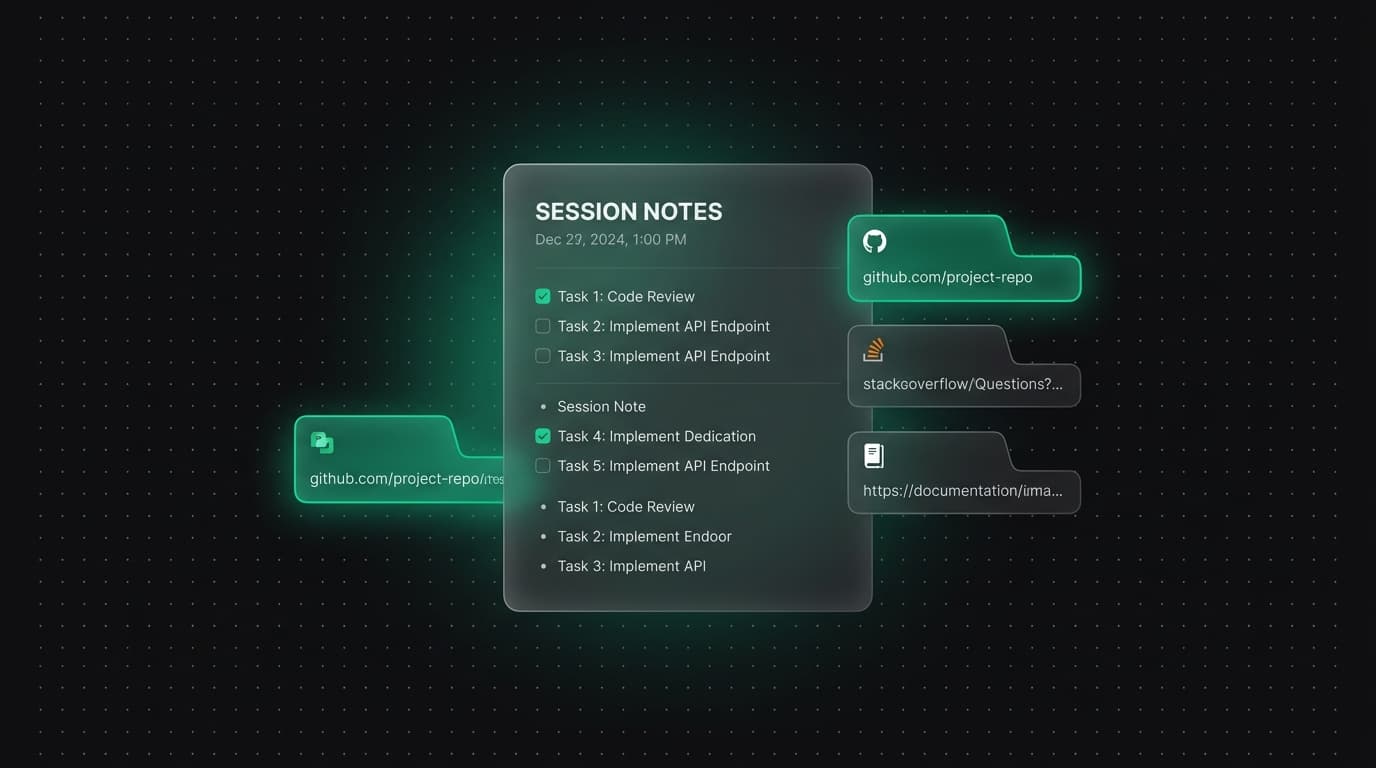
Open the Tabzero extension’s Tab manager and select the relevant tabs in the current window. Choose an existing note in Save destination, or select New workspace note, then use Save to note. This action keeps browser tabs open, so you can check the saved sources before closing anything.
Open the saved note and write the question, the evidence you have found and the next action. Keep an observation separate from a conclusion: the documentation describes a callback is evidence; this fits our login flow is your interpretation. A note that records both is more useful than an unexplained list of links.
Reopen the note together with its sources
From the dashboard, open the note and its Sources panel. With an updated, connected extension, choose Open note + tabs. Tabzero opens the note and saved web sources in a grey Chrome group named after the note, with the note first and focused.
During the browser session, using the action again reuses the tracked group and restores missing source tabs. It can also restore the note if you closed that tab while leaving the sources open. Pages outside the group are not moved into it.
Know what a saved session does not preserve
The note stores source links, not snapshots of websites. A page can change, disappear or require a fresh login. Unsaved form entries and the exact state of a web application are not restored from a saved URL. Record the important passage, decision or date in your note when that context matters.
Browser group tracking lasts for the browser session. After a full browser restart, restoring may create a new group. Your saved note and source list are separate from that temporary group arrangement.
Resume with a short review
Read the next action before opening every source. Remove saved sources that no longer matter; removing a source does not delete the note text or close the original browser tab. When the task is complete, put the result at the top and move the note into an archive folder if useful.
If the group action is missing, check the connection rather than saving another copy of the session. The troubleshooting guide explains ordinary source tabs, blocked pop-ups and outdated extensions.
Tabzero: Browser Tab Manager & Notes
Save tab links, keep notes beside your sources, and return to what matters. Tabzero is in development preview; AI Notes remains planned.
Related guides
Organize Competitor SEO Research with Browser Tab Groups
Compare competitor pages, search intent, evidence, internal links, and content gaps with a fair browser-tab research structure.
Turn Competitive Research Tabs into an Evidence Matrix
Compare products using consistent criteria, dated primary sources, and explicit gaps instead of relying on a wall of browser tabs.
Turn Research Tabs into a Clear Content Outline
Convert browser research into claims, supporting sources, open questions, and a practical article outline without losing attribution.