
Open a Note in Its Own Browser Tab Without Duplicating It
Open a workspace note in its own browser tab without creating a separate notepad. The direct view uses the same note as the dashboard, so focused writing and an organized library can coexist.
Open the existing note
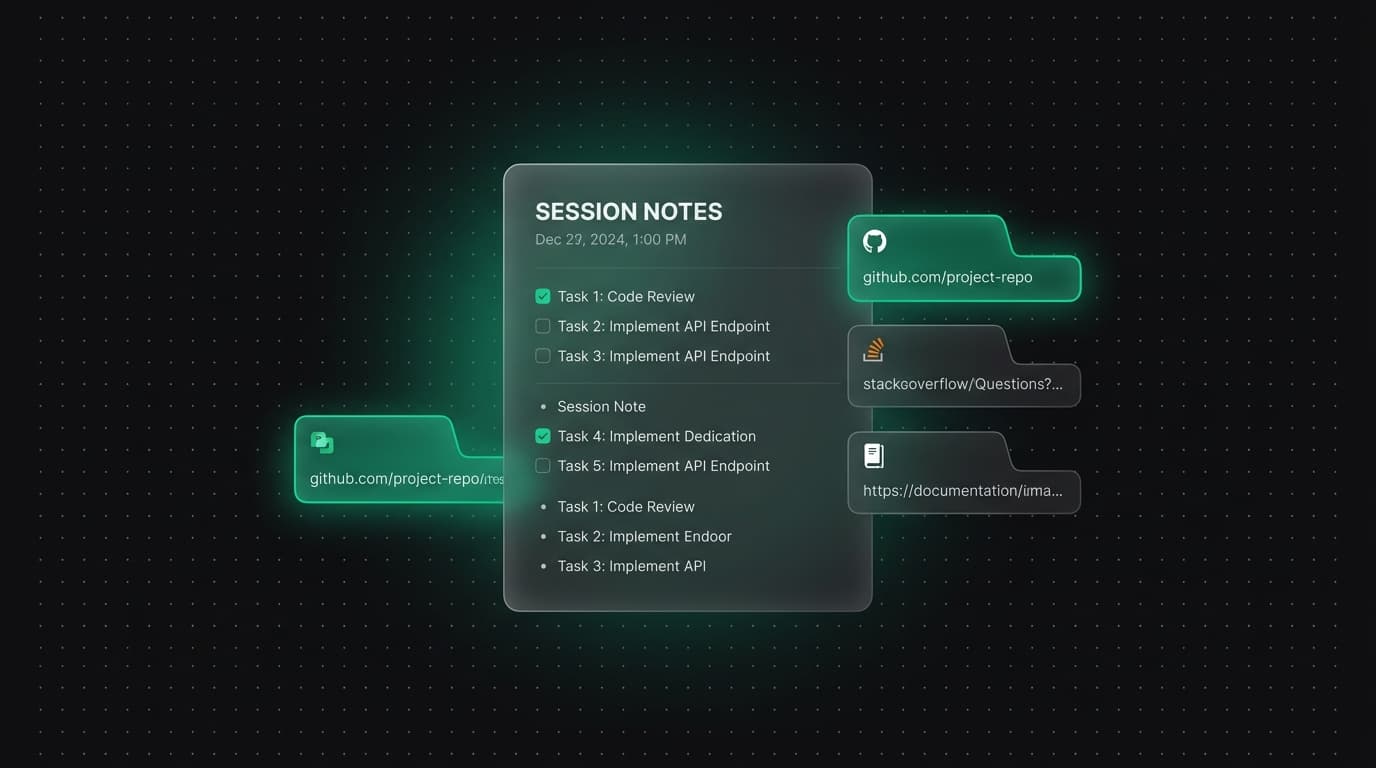
In the dashboard, select your note and use Open note in new tab in the note toolbar. Its address uses /note/ followed by the note identifier. The page shows the editor and a compact toolbar, without dashboard navigation or the internal document tab strip.
Use Copy note link to keep the address in a bookmark. The title can change without changing the identifier, so renaming the document does not require rebuilding that bookmark. This action is different from creating a new workspace note.
Keep the writing surface focused
Leave Sources closed while drafting. When you need evidence, open Sources to search saved titles and addresses, follow a reference, or jump to a related note. Related notes use saved sources and captured links; they are navigation aids, not proof that two documents support the same conclusion.
Try a simple structure: put the current question first, record findings below it and finish with the next action. A checklist inside the note can track that action without adding a second task system.
Understand how the two views stay connected
Both views read and edit the same workspace record. Title and content changes become available in the other view through shared storage and synchronization. Deleting a note also makes its direct URL unavailable; visiting an old link never creates a replacement note.
Avoid editing the same passage simultaneously in multiple places. Check the save status before switching accounts or devices. If synchronization needs attention, preserve your text and use the recovery controls instead of assuming the latest edit has already reached another device.
A note URL is not a public sharing link
An account note requires access to the same account. A guest note stays in the browser workspace on that origin. Sending a guest URL to a colleague or opening it in another browser profile does not send the note content with it.
For a portable text copy, use Export Markdown. The export is a separate file: later workspace edits do not automatically update it. Review its contents before sending it to someone else.
Use the URL as a starting point
Bookmark the direct note for a recurring project or keep it beside the reference page you are reading. Ctrl+T or Cmd+T continues to use your normal browser New Tab page; Tabzero does not replace it with a new document.
To bring back the reference pages, open Sources and choose Open note + tabs with the extension connected. Without the extension, Open sources opens ordinary browser tabs and reports when the browser blocks additional windows.
Tabzero: Browser Tab Manager & Notes
Save tab links, keep notes beside your sources, and return to what matters. Tabzero is in development preview; AI Notes remains planned.
Related guides
Turn Competitive Research Tabs into an Evidence Matrix
Compare products using consistent criteria, dated primary sources, and explicit gaps instead of relying on a wall of browser tabs.
Turn Research Tabs into a Clear Content Outline
Convert browser research into claims, supporting sources, open questions, and a practical article outline without losing attribution.
Prepare for a Meeting with a Five-Link Browser Brief
Turn scattered meeting tabs into an agenda, source list, decision log, and next-action note that is easy to revisit.