
Note Sync and Conflict Recovery: How Keep Both Works
A note can be visible in your browser while its latest edits are still waiting to reach your account. Tabzero’s extension and Web App have pending-save and conflict-recovery code to handle that distinction. Here is how to read the workflow and what to do when a save needs attention.

A local draft and an account save are different
Typing updates the note you are working on. Sync sends changes to the account service. If the connection drops or a request fails, the browser may still hold a pending draft that another browser has not received.
Check save status before continuing on another device. If the interface reports a pending save, an expired session or a conflict, treat it as work that still needs attention. Seeing a note in one window does not prove its latest revision is available everywhere.
A note export gives you a separate Markdown copy of the note text and source references. It can be useful before resolving a problem, but it is not a complete backup of every workspace setting or editor-specific block feature.
What is implemented in the extension and Web App?
The extension implements account-scoped note caching, version checks, pending retries and Keep Both conflict recovery. The Web App now also has version-aware saves, paginated loading, account-scoped drafts and an explicit Keep Both action.
The note API records versions and deleted records. Pagination allows the client to fetch a collection over multiple requests. These mechanisms address stale edits, larger collections and deletion handling; they do not establish real-time collaboration or automatic merging of every concurrent change.
In the Web implementation, drafts are kept in browser storage before upload, and retries run after failures or reconnecting. Storage can be unavailable or full. If the interface reports that condition, keep the page open and copy or export your changes instead of assuming they have been retained.
These are implementation details in development builds. Repeated edits, reloads, reconnecting and account switching remain part of cross-surface beta validation. No zero-loss or seamless cross-device guarantee is being made.
Why a conflicting edit needs your decision
Suppose a laptop and another browser both open revision 4 of the same note. One saves a change first and advances the account version. The other is now trying to save from an older starting point. Replacing the newer note without review could discard someone’s work, including your own edit in the other window.
Version-aware saves detect that stale starting point. The client can report a conflict and retain the local draft for resolution instead of treating every later request as the final answer.
The conflict is about competing versions, not a judgement about which writing is better. Read both copies and decide what to retain. A source link shared by the copies does not mean their note contents are identical.
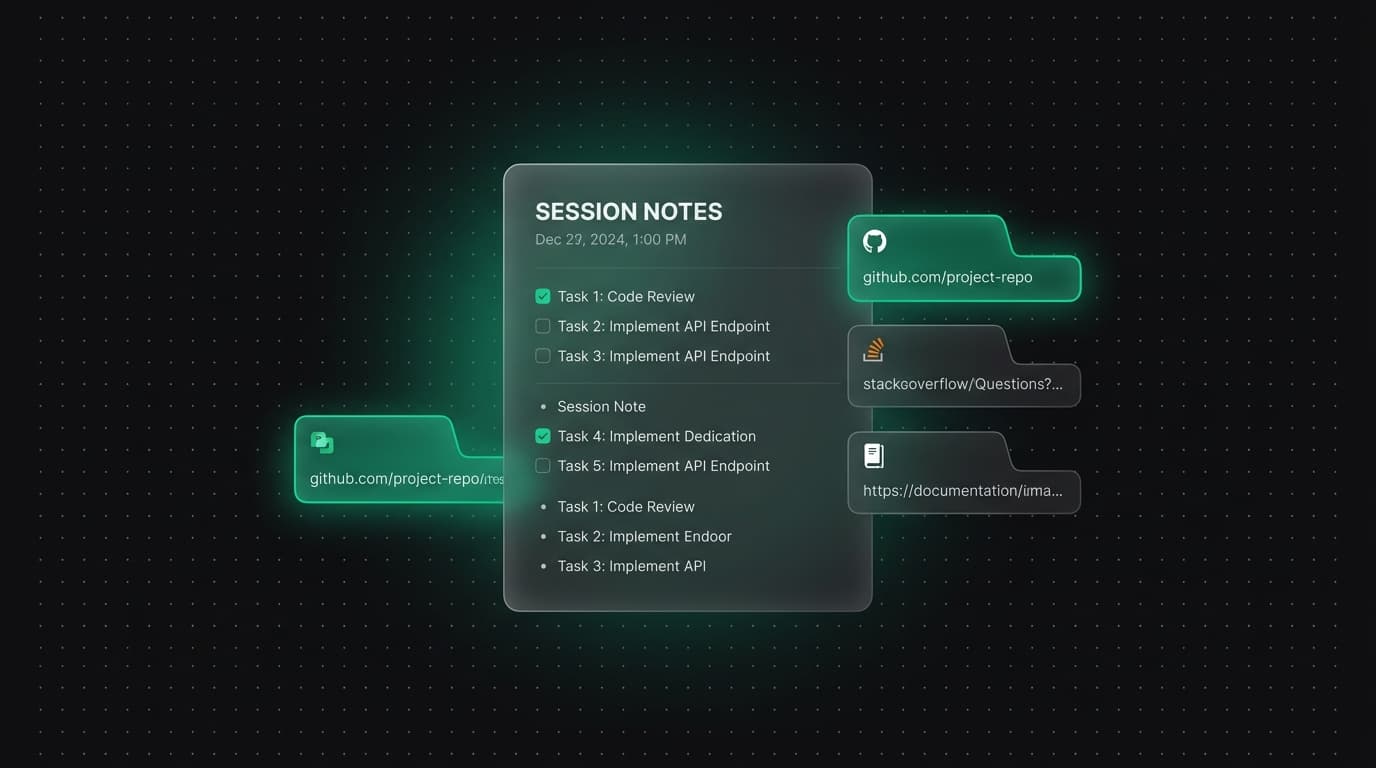
How Keep Both handles note conflicts
For a conflicting content edit, choosing Keep Both preserves the account revision and creates a separate note from the local draft. In the Web App the local copy receives a new note ID and a ‘(local copy)’ suffix, then follows the normal save flow.
Compare the two notes, copy the useful changes into the version you want to keep and check that the resulting save completes. Keep Both is an explicit action; it is not a claim that the product automatically chooses or merges your final text.
Conflicting deletion is a different case. The Web implementation cancels the conflicting deletion and keeps the server note. It does not create a useful second copy from a deleted draft. Review the remaining note before deciding whether to delete it again.
A practical checklist for an interrupted save
First, keep the affected browser page open. Read the status message and confirm which account you are using. Avoid clearing site data or removing the extension while it holds pending work you need.
Next, make a Markdown export or copy the latest text if you are concerned about a draft. Reconnect to the network or sign back in to the same account when the status asks you to, then allow the pending save to retry.
If a content conflict remains, choose Keep Both and inspect the resulting notes. Check the save status of the local copy as well: creating a recovery copy and completing its upload are separate steps.
Finally, reopen the note in the intended browser and verify the changes you expected. If the content differs, return to the browser holding the draft rather than repeatedly editing competing versions.
Account switching, offline use and beta readiness
Google sign-in identifies the account whose notes the service should return. The clients scope stored notes and active state by account. Switching accounts does not turn the previous account’s pending drafts into the new account’s notes.
Pending note storage is not a full offline copy of your source websites. Saving a source keeps its link and details; reopening the original page still depends on that website being accessible. Account sync is also not end-to-end encryption or a shared team editing workspace.
Before beta, the reliability checks include editing and reloading, collections larger than 100 notes, reconnecting, stale updates, sign-in and account switching. Public beta access and a release date have not been announced. Follow the roadmap for the distinction between built features and the validation still to complete.
Tabzero: Browser Tab Manager & Notes
Save tab links, keep notes beside your sources, and return to what matters. Tabzero is in development preview; AI Notes remains planned.
Related guides
How to Organize Many Chrome Tabs into Groups Fast
Turn a crowded Chrome window into a few useful tab groups with bulk selection, clear names, duplicate cleanup, and a repeatable maintenance routine.
Chrome Tab Groups vs Separate Windows: Which Is Better?
Compare Chrome tab groups and separate windows for focus, task switching, account separation, recovery, and practical multi-project workflows.
How Chrome Tab Groups Sync Across Devices
Set up Chrome tab-group sync across computers and phones, verify the right account, and understand how closing or deleting a group propagates.