
How to Organize Browser Tabs into Useful Session Notes
A useful browser session has more than a collection of URLs: it has a purpose, a few decisions and a next step. This guide shows how to organize browser tabs into session notes you can return to, using the features in Tabzero’s current development builds.

Start with the task, not the website
Name a session after the decision you are trying to make: ‘Choose a desk for the home office’, ‘Learn CSS grid’ or ‘Plan a weekend in Da Nang’. A name like ‘Tuesday tabs’ gives you much less help when you return a week later.
Keep pages that contribute to that task together. A product listing, a delivery policy and your room measurements can belong in the same note even though they come from different websites. Separate an unrelated tutorial into its own session instead of turning one note into an inbox for everything.
Tab groups are useful for pages you are actively working through. Bookmarks are useful for destinations you revisit. Session notes add the context behind a group of links: why you saved them, what you learned and what remains undecided. Use whichever combination fits the work.
Save selected tab links with Quick Card
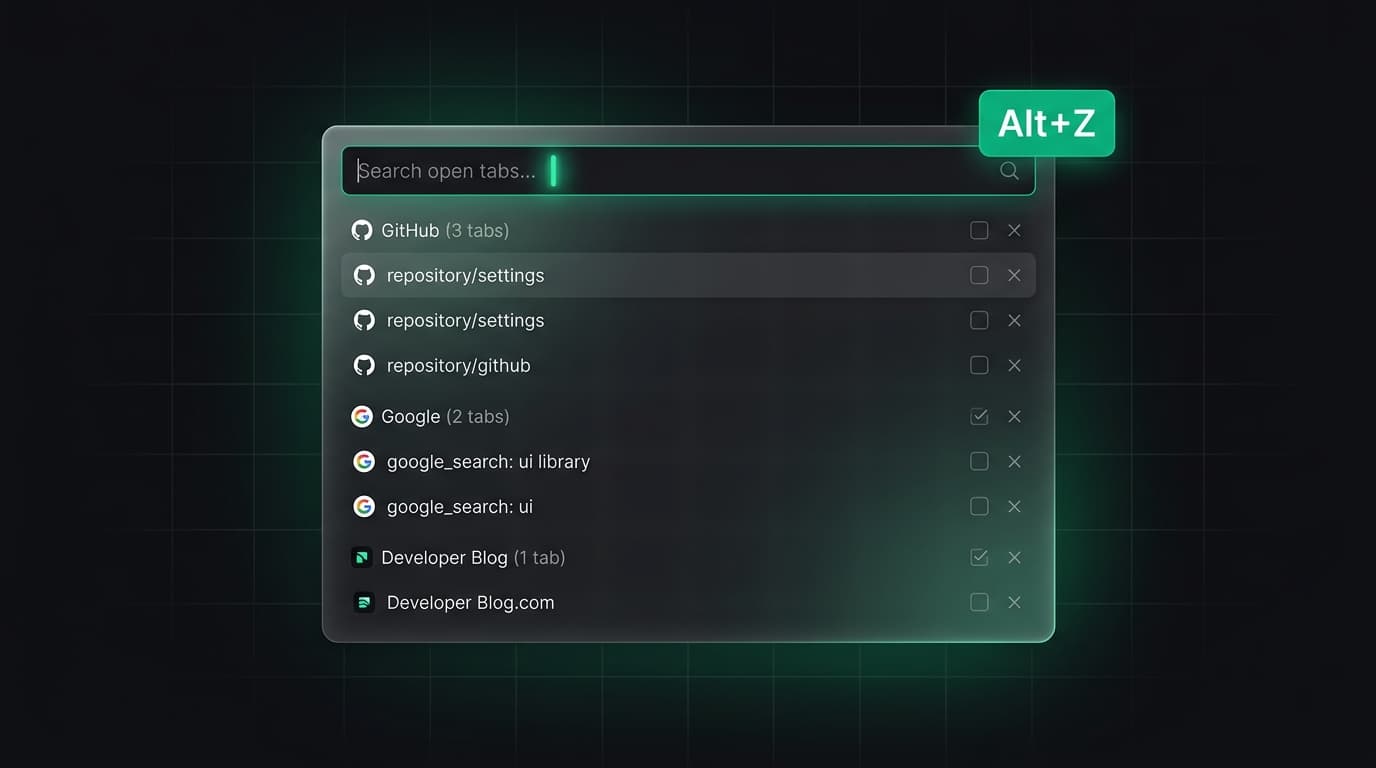
With the Tabzero browser extension installed, press Alt + Z to open Quick Card. Search your open tabs and select the pages relevant to your task. Browser-reserved pages may not support the overlay; use the extension popup where appropriate. Public store availability is listed on the download page.
Choose a new session or an existing note as the destination. Review which sources are new, already saved or duplicates before saving. A relationship between two pages does not mean they are the same source, so check the URLs before deciding what to keep.
Tabzero saves source links and page details alongside your note. This is not a full-page archive: the original website still needs to be available when you reopen a link. Write down an important observation in your note if you need to preserve the context of your decision.
Check the save result before closing anything important. Saving sources and choosing to close tabs are separate decisions; leave pages open when you still need to work in them.
Turn the session into a note you can resume
Add three short headings: Goal, What I know and Next step. Under Goal, write the question the session should answer. Under What I know, record observations with the relevant source links. Under Next step, use a checklist for the work still to do.
For a desk comparison, record the dimensions you need, the delivery restrictions you found and the option you prefer so far. Keep changing prices as dated observations rather than timeless facts. The next task might be ‘Measure the doorway before ordering’ instead of ‘Read all these tabs again’.
In the Web Workspace, write with headings and checklists, browse saved sources beside your note, and organize notes into project folders. You can export a note and its source references as Markdown. Export is a portable text copy, not a promise that every editor-specific layout will transfer unchanged.
Return to the right place
Give the note a recognizable title and move it to a folder such as Work, Learning or Personal plans. Folder names help you find the work; the note itself should explain why it matters.
Web Workspace URLs can carry the selected note, view, panel and search. Save a workspace link when you want to return to that location. It is a navigation link, not public sharing: another person does not gain access to your account notes by receiving it.
Before continuing on another browser, check account sync. A pending or conflicting save needs attention. The source graph can help you move between related notes and links, but your written next step is often the quickest way to resume.
What is built, and what comes next?
Development builds include Quick Card capture, session notes, source review, graphs, Google sign-in and account note sync. The Web Workspace now also has folders, note/view navigation, Markdown export, pending drafts and Keep Both recovery. These implementation updates still require beta validation across the Web App and extension.
The current milestone is core reliability: save and reopen notes, recover interrupted work, validate account switching and complete browser checks. Beta access and a public release date have not been announced.
AI drafts from selected readable tabs are planned after core reliability, followed by reviewable additions to existing notes. Manual notes remain useful without AI. The public roadmap separates current development from these future workflows.
Common questions about saving tabs as notes
Can the Web App capture all my browser tabs? Browser-tab capture requires the extension. The Web Workspace works with your notes and saved sources; opening the website alone does not grant it access to your browser’s tab list.
Do I need AI to organize tabs? No. Selecting sources, writing notes, organizing folders and reopening links are manual workflows. AI generation is not currently available.
Does saving a source make it available offline? It keeps the URL and source details, not an offline copy of the full website. Pending note drafts and a saved webpage archive are different capabilities.
Tabzero: Browser Tab Manager & Notes
Save tab links, keep notes beside your sources, and return to what matters. Tabzero is in development preview; AI Notes remains planned.
Related guides
How to Save Open Tabs Before Restarting Chrome
Save the tabs that matter before a Chrome restart, record the task context, and verify what can and cannot be restored afterward.
Too Many Tabs Open? Here's How to Finally Fix It
Struggling with too many tabs open in Chrome? This practical guide gives you a three-step system to save, note, and close tabs without losing anything important.
Travel Planning with Browser Tabs: Build Grounded Itineraries
Transform dozens of flight searches, hotel comparisons, and local maps into clean, structured travel notes with preserved source links in Tabzero.