
Too Many Tabs Open? Here's How to Finally Fix It
If you have 40 or more tabs open right now, you are not disorganized — you are using tabs as a to-do list, a reading queue, and a reminder system all at once. The browser was never designed for that, and the result is a slow machine, a fragmented mind, and a nagging fear that closing anything will lose something important. This guide gives you a concrete three-step system to finally fix it.

Why browser tabs multiply faster than you expect
The core reason people end up with too many tabs open is not laziness — it is anxiety. Every tab represents an unfinished thought, an article you meant to read, a product you were comparing, or a reference you needed to keep accessible. Closing it feels like making a decision you are not ready to make. So tabs accumulate, and each new browsing session adds to the pile rather than replacing it.
Research into cognitive load consistently shows that maintaining a large number of open mental threads — even passively, through visible browser tabs — consumes working memory and increases stress. When your tab bar shrinks each favicon to an unreadable sliver, you are no longer managing information; you are just storing anxiety in your browser window. The solution is not to force yourself to close tabs through willpower, but to build a system that makes closing tabs feel safe.
The real cost of keeping too many tabs open
Every open browser tab consumes RAM. Chrome famously allocates a separate process per tab, and a session with 50 tabs can easily consume 4 to 8 gigabytes of memory on a typical laptop. The visible consequence is a machine that slows to a crawl when you switch applications, fans that run continuously, and battery life that drains in hours rather than a full workday. On older hardware, the browser will eventually crash entirely — taking all those carefully curated tabs with it.
Beyond the hardware cost, there is a psychological toll. Context switching between dozens of open tabs produces the same kind of decision fatigue that makes it hard to focus on deep work. Researchers studying knowledge worker productivity have found that the mere presence of unread items — whether emails, notifications, or visible browser tabs — degrades concentration even when you are not actively engaging with them. Closing tabs is not losing information; it is reclaiming your ability to think.
The three-step system: Save, Note, Close
The only sustainable solution to chronic tab overload is a workflow that makes closing tabs feel safe rather than risky. The system has three steps: Save, Note, and Close. Save means grouping your open tabs into a named session — not as individual bookmarks, but as a cohesive cluster of related pages that belong together. A session called 'Standing Desk Research' or 'Sprint 14 Backend Tickets' captures the context as a unit rather than a fragmented list of URLs.
Note means writing one or two sentences about why this group of tabs matters. Not a summary of each page, but a note to your future self: what decision were you trying to make, what problem were you solving, what did you find most useful so far? This note transforms a list of URLs into an actionable brief. When you return to it next week, you will know immediately whether it is still relevant and where you left off.
Close means shutting every tab in that group with confidence, because both the pages and your context about them are safely stored. The next time you need that research, you reopen the saved session and pick up exactly where you left off. The browser stays fast, your desk stays clean, and the anxiety of losing something important disappears entirely.
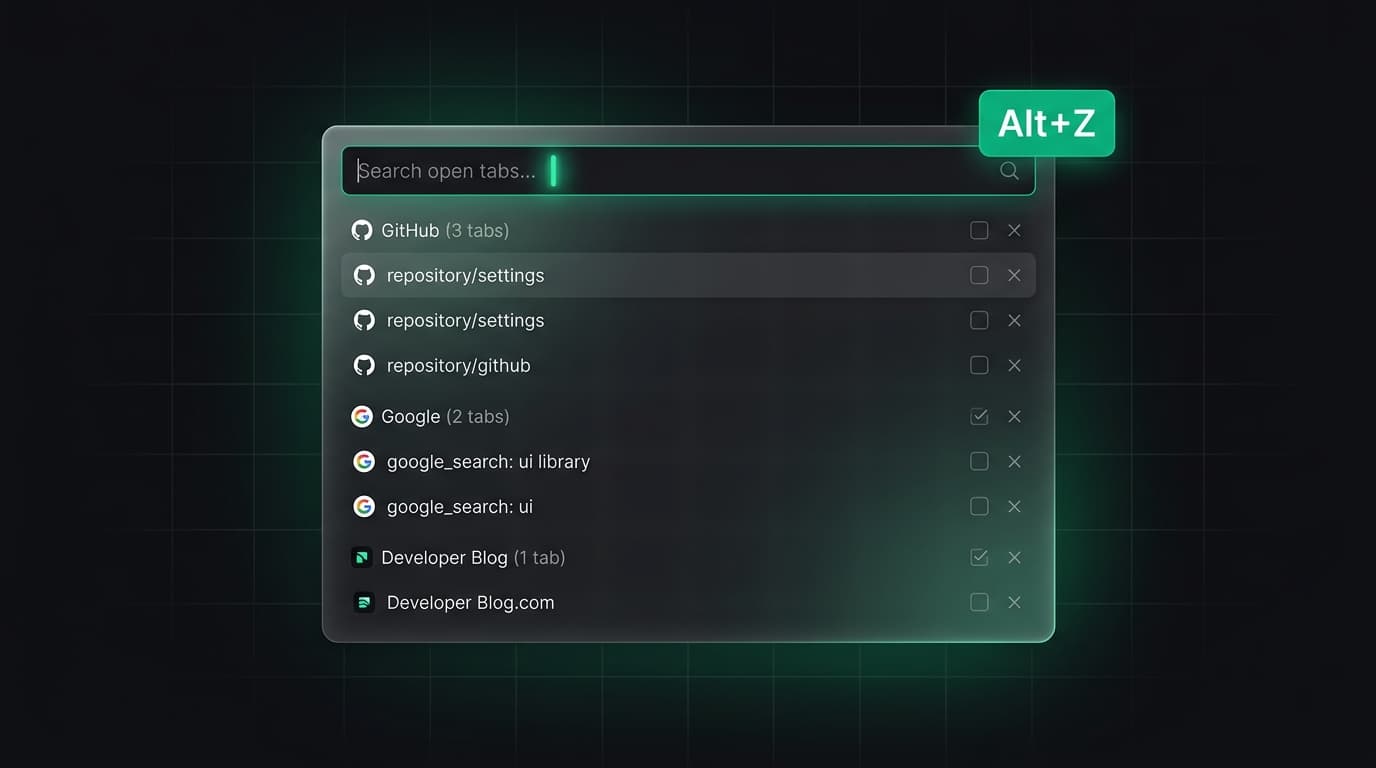
Using Alt+Z to quickly save and sort tab groups
Tabzero's Quick Card, activated with the Alt+Z keyboard shortcut, gives you instant access to all your open tabs from a floating overlay without leaving your current page. You can search across all open tabs by title or URL, identify duplicates at a glance, and select a group of related tabs to stash into a named session in a single click. The whole operation takes about fifteen seconds, which means you can clear a cluttered browser during any natural pause in your work — the end of a meeting, a break between focus blocks, or the moment before you shut your laptop.
The Source Engine inside Tabzero automatically detects duplicate tabs — the same product page opened three times from different search results, or a documentation page you navigated to from two different starting points. Before you stash a session, duplicates are surfaced so you can prune them without manually scanning your tab bar. This alone typically reduces a 40-tab session to 20 or 25 meaningful pages.
How a session note replaces twenty saved bookmarks
Bookmarks are designed for permanent reference — pages you expect to return to repeatedly over months or years. But most tabs represent temporary, context-specific research that you only need once, for a specific decision or project. Saving each of those pages as an individual bookmark produces a bookmark library that grows out of control and becomes impossible to navigate, with hundreds of entries stripped of the context that made them useful.
A session note solves this differently. Instead of saving individual pages, you save the entire research context: the group of tabs, the notes you wrote about what you found, and the decision you were working toward. When the project is done, the session can be archived rather than permanently saved. Your bookmark library stays clean and meaningful, while your research history stays accessible for as long as you need it.
Building a sustainable tab habit
The three-step system works best as a daily ritual rather than an occasional emergency cleanup. At the end of each working day, take five minutes to review your open tabs. Group related pages into sessions, write a one-line note about each group's purpose, and close everything. Start the next day with a clean browser and a clear list of sessions waiting for you in Tabzero — each one a precise record of where you left off.
Over time, this habit changes your relationship with your browser. Tabs stop being a source of anxiety and become a deliberate tool. You open them when you need them and close them when you are done, because you know that everything important is safely stored and instantly retrievable. The browser becomes a workspace rather than a waiting room for decisions you have been avoiding.
Tabzero: Browser Tab Manager & Notes
Save tab links, keep notes beside your sources, and return to what matters. Tabzero is in development preview; AI Notes remains planned.
Related guides
How to Organize Many Chrome Tabs into Groups Fast
Turn a crowded Chrome window into a few useful tab groups with bulk selection, clear names, duplicate cleanup, and a repeatable maintenance routine.
Chrome Tab Keyboard Shortcuts for a Faster Daily Workflow
Learn a small set of verified Chrome tab shortcuts for switching, searching, reopening, and saving pages without losing task context.
How to Find an Open Tab in Chrome Across Crowded Windows
Find a missing Chrome tab with Tab Search or @tabs, then organize the useful pages so the same search is easier next time.