
How to Organize Many Chrome Tabs into Groups Fast
When Chrome has dozens of open tabs, organizing them one at a time creates more work than it saves. A faster cleanup uses bulk selection, a small number of task-based groups and a final decision about what should stay open, be saved or be closed.
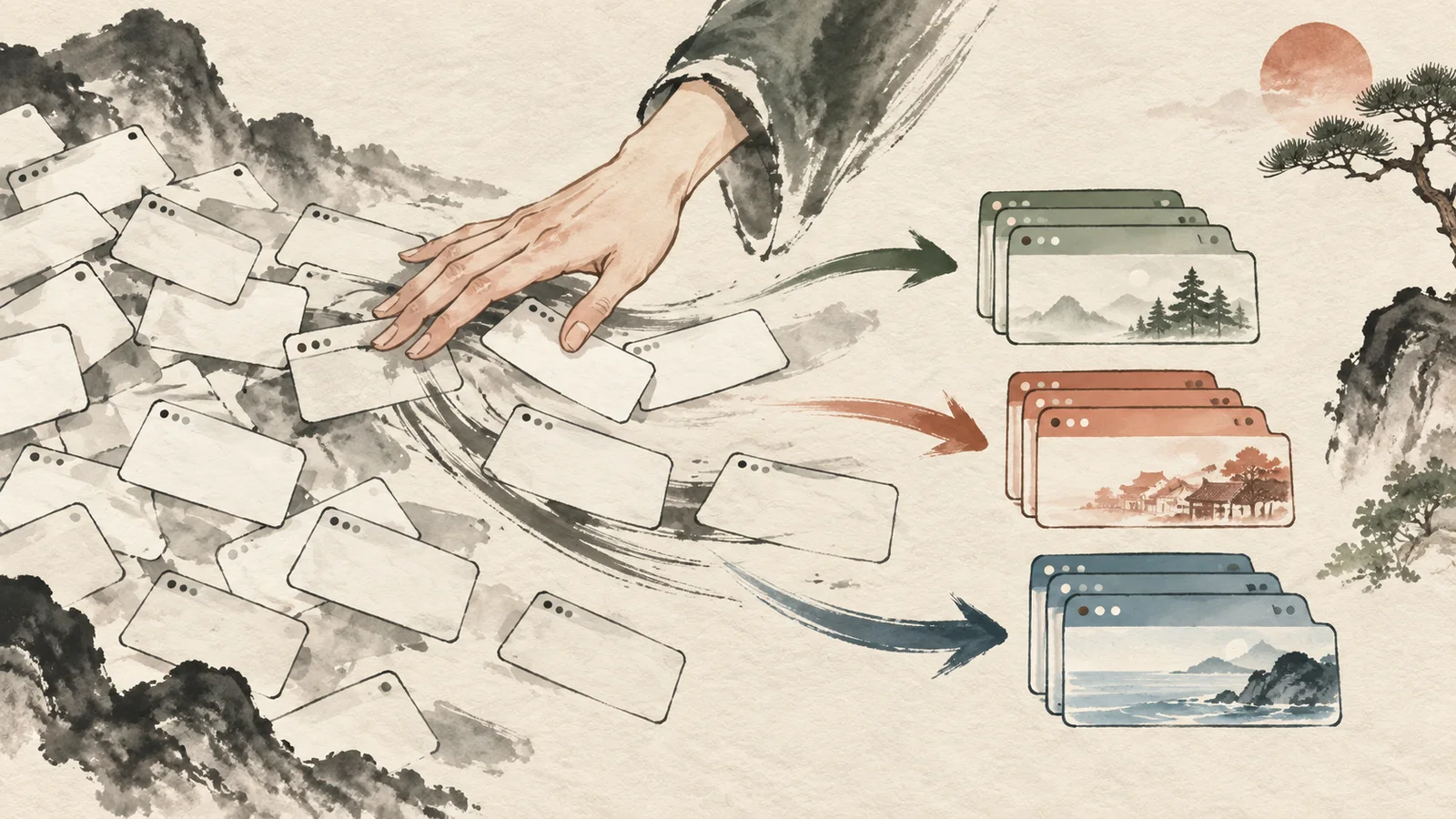
Take a quick inventory before moving tabs
Scan the tab titles and identify three to five active outcomes, such as Finish report, Plan trip or Review pull request. Ignore perfect taxonomy. Your first pass only needs enough structure to separate current work from reference and noise.
Close obvious duplicates, blank tabs, completed transactions and pages you can find again easily. Fewer tabs make the remaining grouping decisions clearer.
Select several tabs at once
Chrome lets you select multiple tabs and then move, close or group them together. Use Shift-click for a continuous range and Ctrl-click on Windows or Command-click on macOS for individual tabs, then right-click the selection and add it to a new or existing group.
Start with the easiest cluster, usually several neighboring pages from the same task. A visible early win creates space for sorting the ambiguous tabs.
Name groups by outcome
Use a short verb plus object: Draft proposal, Compare cameras, Study chapter 6. Outcome names tell you why the group exists; broad labels such as Research or Misc only describe the kind of activity.
Reuse colors for a simple status meaning if that helps, such as green for active and gray for waiting. Do not build a color legend so complex that adding a tab requires a decision tree.
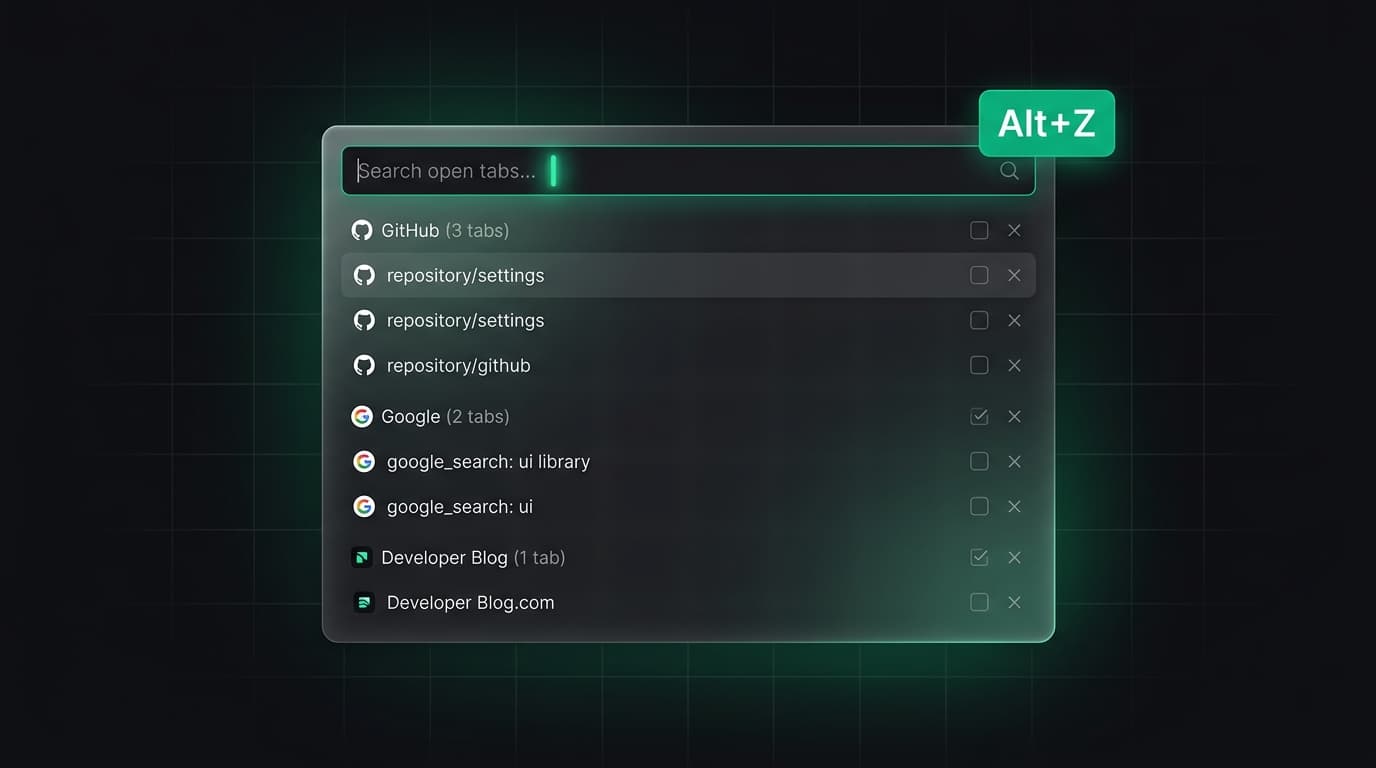
Separate active work from saved reference
Keep only groups with a near-term next action open. Close saved groups you plan to resume, bookmark stable reference pages you expect to revisit individually, and use a saved session when the whole set plus its context must survive.
This prevents the tab strip from becoming an archive. An open tab should usually mean current attention, not fear that the page will never be found again.
Handle the leftover tabs explicitly
After the main groups are formed, review every leftover. Assign it to a real outcome, save it as reference or close it. A permanent Misc group only moves uncertainty into a colored container.
If several leftovers represent a future project, save them with one sentence describing the trigger for resuming it. Without a trigger, the bundle is likely to remain clutter.
Use a five-minute maintenance routine
At the end of a work block, collapse inactive groups, close completed groups and rename any group whose purpose changed. Once a week, reopen saved groups briefly and delete only those you are certain are finished.
Measure success by recovery speed: you should be able to open Chrome, identify the active project and continue within a minute. If not, reduce the number of open groups and preserve context in notes instead.
Tabzero: Browser Tab Manager & Notes
Save tab links, keep notes beside your sources, and return to what matters. Tabzero is in development preview; AI Notes remains planned.
Related guides
Chrome Tab Groups vs Separate Windows: Which Is Better?
Compare Chrome tab groups and separate windows for focus, task switching, account separation, recovery, and practical multi-project workflows.
How Chrome Tab Groups Sync Across Devices
Set up Chrome tab-group sync across computers and phones, verify the right account, and understand how closing or deleting a group propagates.
Chrome Tab Groups Disappeared? A Recovery Checklist
Use this recovery checklist to find closed Chrome tab groups, check the correct profile and sync state, and avoid deleting recoverable work.