
How Chrome Tab Groups Sync Across Devices
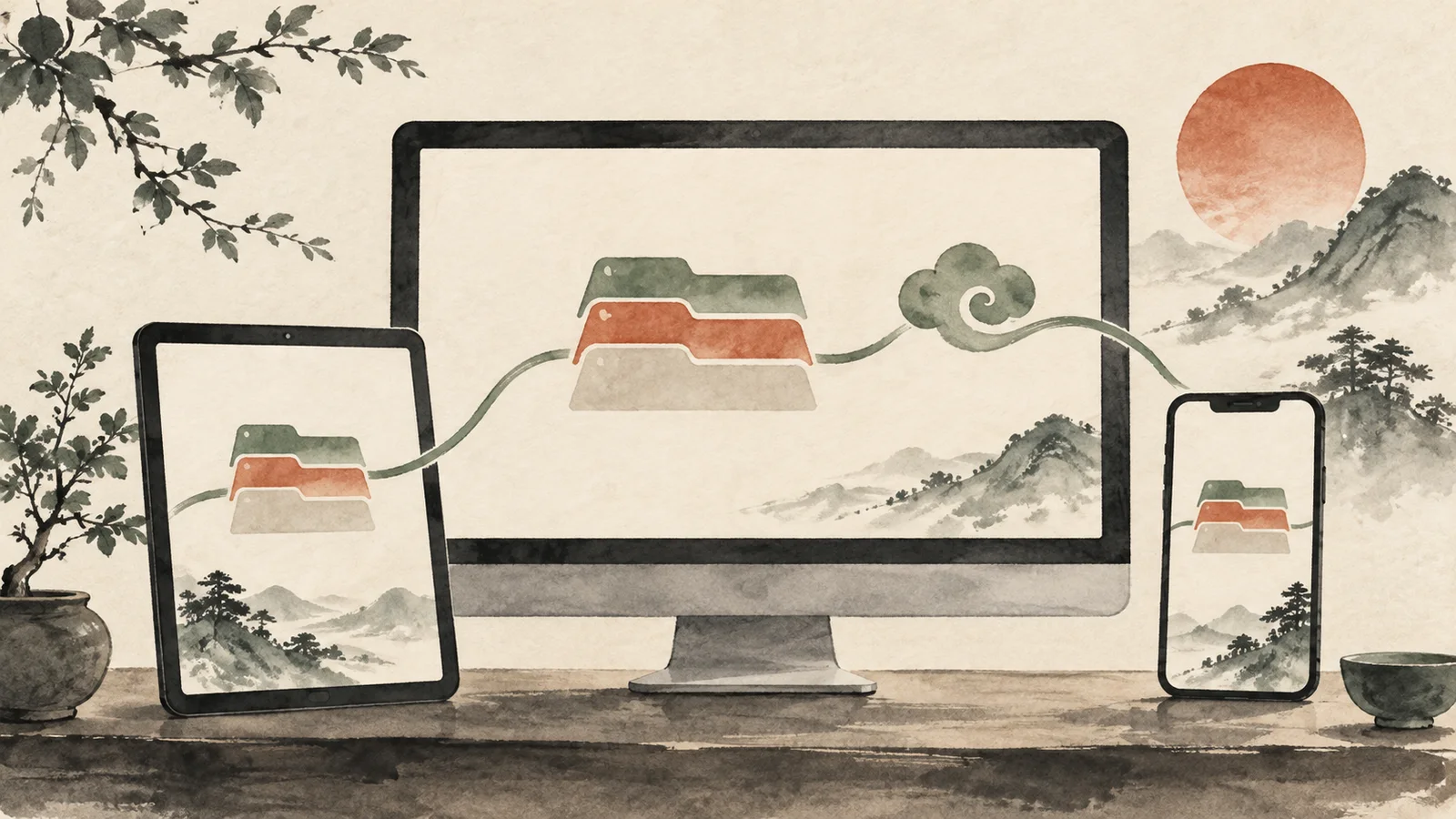
Chrome can carry tab groups between devices when each browser uses the same Google Account and sync includes browsing history and tabs. A reliable setup starts with identity and settings, then uses a small test group before important research depends on it.
Check the account on every device
Open Chrome's profile controls on the computer, phone or tablet and confirm the same Google Account is active. Similar avatars and names can hide a work-versus-personal mismatch, which is a common reason a group appears on one device only.
Managed work accounts may apply organization policies. If a setting is unavailable, ask the administrator or use an approved workflow rather than repeatedly signing out and risking more confusion.
Enable the relevant sync data
Google's sync documentation includes tabs and browsing history among the data that can be saved to an account. Chrome's tab-group help says changes are automatically saved and synced when browsing history and tabs are enabled.
Review the sync choices on each device rather than assuming sign-in alone is enough. Use a trusted device and understand the account's privacy expectations before syncing personal browsing data.
Run a small end-to-end test
Create a group named Sync test with two harmless pages on the first device. Wait for it to appear on the second device, open it there, change the color or add one page, and confirm that the update returns to the first device.
This test verifies the account, data types and propagation without exposing an important project. Sync is not always instantaneous, so allow a short delay and keep both devices online.
Use the platform's tab-group entry point
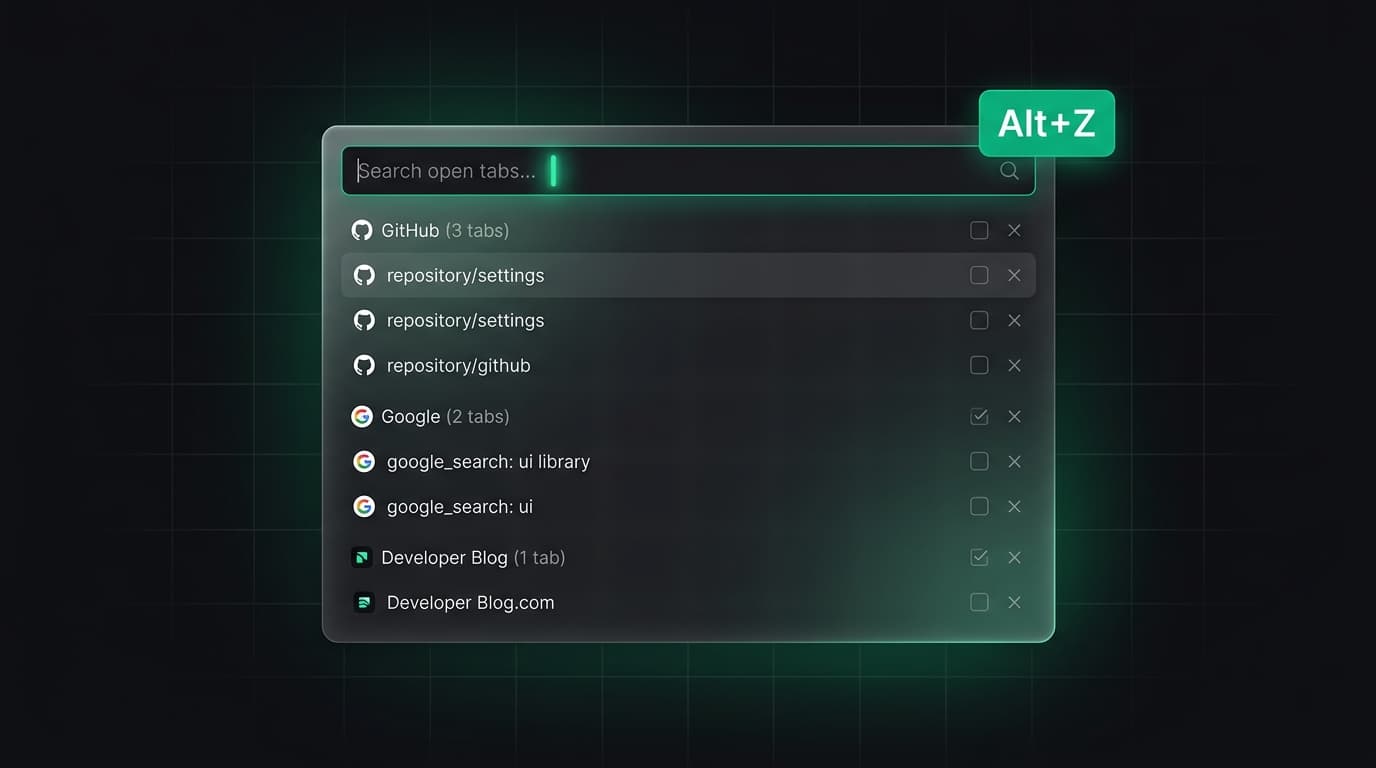
Desktop Chrome exposes saved groups from the bookmarks bar and Chrome menu. Mobile layouts place groups within the tab switcher. The visual controls differ, but the same group can represent a shared project across form factors.
Open only the pages needed on a phone. A desktop research group may contain resources that are awkward on a small screen, so cross-device access works best as continuity rather than identical simultaneous use.
Treat delete and ungroup as synced actions
Deleting a group removes it from devices using the same account. Ungrouping keeps its tabs open locally at first but removes the group across synced devices. Choose Close group when you want to hide a project while preserving its saved bundle.
Tell collaborators which action to use when a shared screen or managed account is involved. Similar menu words can lead to irreversible cleanup when someone intends only to reduce clutter.
Keep durable project context separately
Sync carries browser data; it does not explain why a source mattered, what decision was made or what to do next. Pair valuable groups with a project note or named session that records those details.
Before travel or a device change, verify the group on the destination device and save essential URLs independently. That small check is more dependable than discovering a profile mismatch after the original computer is unavailable.
Tabzero: Browser Tab Manager & Notes
Save tab links, keep notes beside your sources, and return to what matters. Tabzero is in development preview; AI Notes remains planned.
Related guides
How to Organize Many Chrome Tabs into Groups Fast
Turn a crowded Chrome window into a few useful tab groups with bulk selection, clear names, duplicate cleanup, and a repeatable maintenance routine.
Chrome Tab Groups vs Separate Windows: Which Is Better?
Compare Chrome tab groups and separate windows for focus, task switching, account separation, recovery, and practical multi-project workflows.
Chrome Tab Groups Disappeared? A Recovery Checklist
Use this recovery checklist to find closed Chrome tab groups, check the correct profile and sync state, and avoid deleting recoverable work.