
How to Find an Open Tab in Chrome Across Crowded Windows
If a page is already open, searching the web for it again can create another copy. Chrome's built-in Tab Search is the quickest place to look. After finding the page, give the task a name and a place to return to it.

Start with Chrome Tab Search
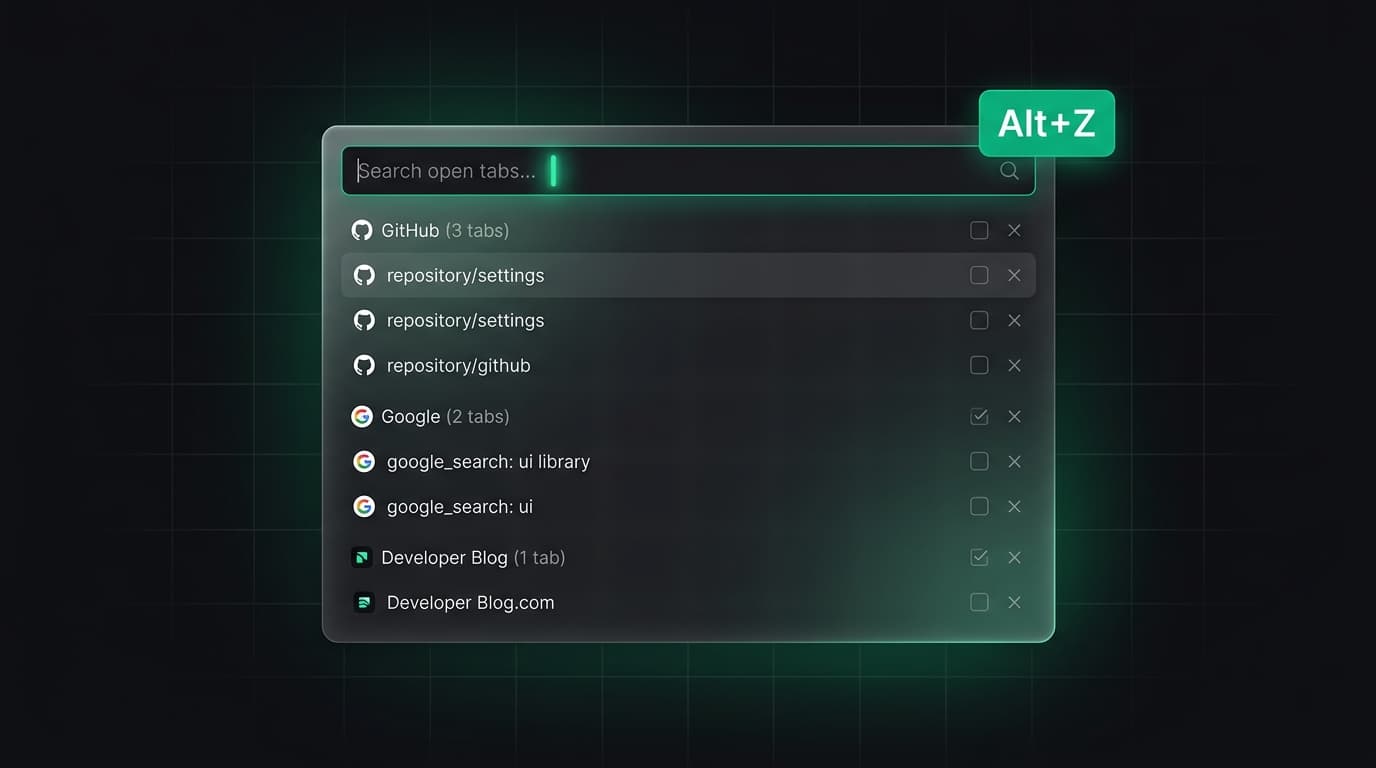
On a desktop computer, select the Tab Search button in Chrome's tab strip. Type a distinctive word from the page title or the site's name, then select the matching open tab. Chrome also lists a close control next to each result, so check the title before using it.
The keyboard shortcut is Ctrl+Shift+A on Windows and Linux, or Command+Shift+A on Mac. If the button is not visible, the shortcut can still open the search interface. Search for a specific term such as an issue number, document title or domain instead of a broad word such as 'work'.
Try @tabs from the address bar
Chrome also supports a tab search shortcut in the address bar. Enter @tabs, press Tab or Space, then type keywords and choose an existing tab from the suggestions. This is useful when your hands are already on the keyboard.
If several results share a title, inspect the site name before opening or closing one. A project can have multiple pages with nearly identical titles, such as a documentation overview and a specific API reference.
Decide whether the page belongs to an active task
Finding a tab solves the immediate problem; deciding why it is open prevents the next one. Put pages you need together today in a clearly named Chrome tab group. Keep the group small enough that its name still describes every page inside it.
For a task you plan to pause, save the useful links with a short note: what you were trying to do, which source matters most and the next action. A title such as 'Compare checkout errors for release 2.4' is easier to recognize than 'Research tabs'.
Handle pages that are no longer open
Tab Search finds open tabs. If the page was closed, Chrome's Ctrl+Shift+T (Command+Shift+T on Mac) can reopen recently closed tabs or windows in closing order. For an older visit, use browser history or a bookmark if one exists.
These recovery paths have different limits. A reopened URL may require you to sign in again, and a form draft or temporary page state may not return. Save important writing in the application that owns it before treating a browser tab as a recovery copy.
A two-minute tab search routine
Search first, open the existing tab and identify the task. Keep the few pages needed now together. Save links and a resume note for paused work, then close tabs you have verified you can find again.
Do not close a tab merely because the URL resembles another one. Two pages can carry separate unsaved edits, account sessions or document versions. Verify the contents before cleaning up.
Tabzero: Browser Tab Manager & Notes
Save tab links, keep notes beside your sources, and return to what matters. Tabzero is in development preview; AI Notes remains planned.
Related guides
How to Organize Many Chrome Tabs into Groups Fast
Turn a crowded Chrome window into a few useful tab groups with bulk selection, clear names, duplicate cleanup, and a repeatable maintenance routine.
A Browser Tab Workflow for Customer Support Cases
Keep support tickets, documentation, account tools, and investigation notes separated by case while protecting customer information.
Turn Research Tabs into a Clear Content Outline
Convert browser research into claims, supporting sources, open questions, and a practical article outline without losing attribution.