
Chrome Tab Keyboard Shortcuts for a Faster Daily Workflow
The best shortcut is the one you will actually use while working. Start with a few dependable Chrome tab commands, then pair them with a simple rule for when a page should be saved instead of left open.
Switch tabs without scanning the strip
On Windows and Linux, Ctrl+Tab moves to the next tab and Ctrl+Shift+Tab moves to the previous one. Ctrl+1 through Ctrl+8 jumps to a numbered position; Ctrl+9 goes to the rightmost tab. On Mac, Command+Option with the right or left arrow moves between tabs, and Command+1 through Command+9 selects a position.
These shortcuts work best when your active task occupies a small cluster of tabs. If you keep jumping across several unrelated projects, separate their windows or save one project for later instead of memorizing positions that change constantly.
Recover a tab you closed by mistake
Use Ctrl+Shift+T on Windows or Linux, or Command+Shift+T on Mac, to reopen recently closed tabs in closure order. Check the address and page state after reopening. The browser may restore a URL without restoring an unsent form or the exact interactive state.
For an older page, search browser history or your saved source list. Repeatedly pressing the reopen shortcut can bring back several unrelated tabs, adding to the clutter you were trying to reduce.
Search instead of opening another copy
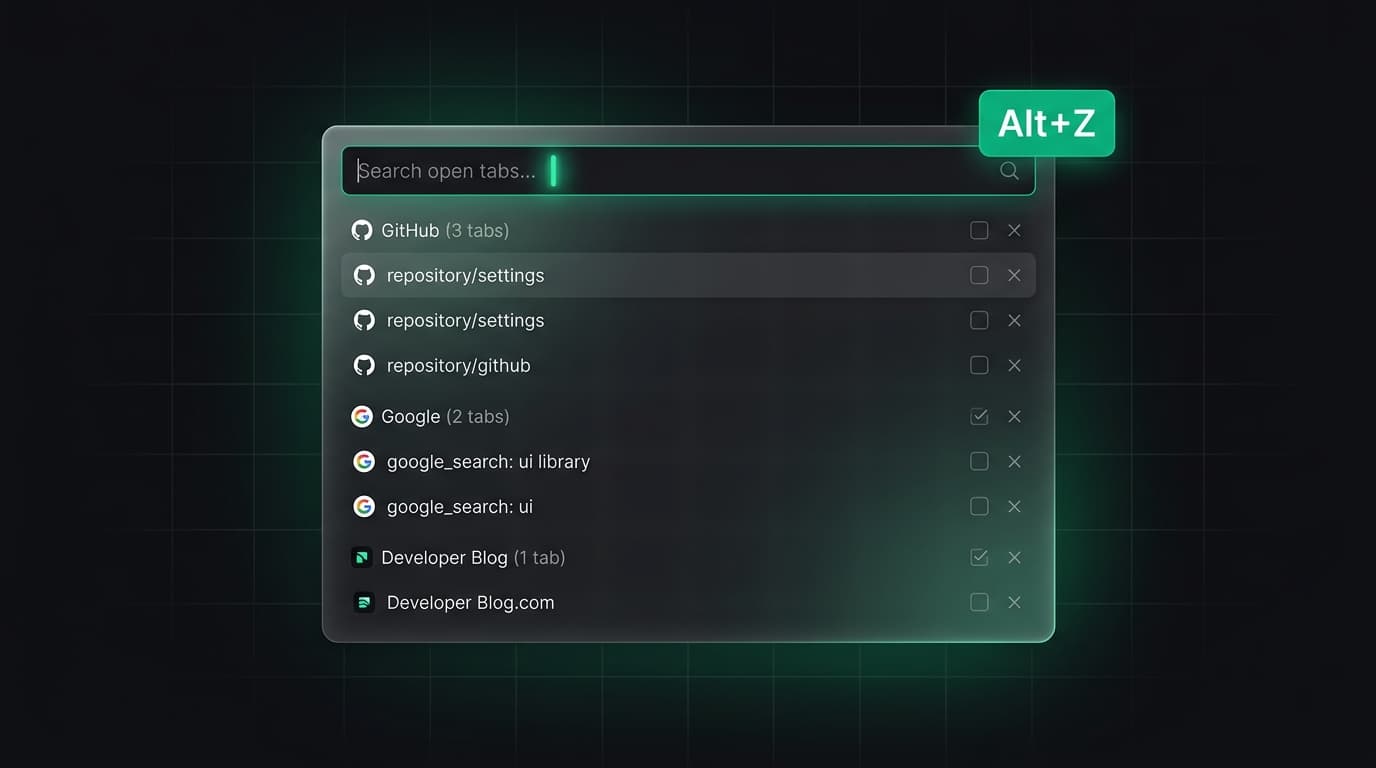
When you cannot see a page, use Chrome Tab Search before repeating a web search. A distinctive document title, project name or domain is more reliable than a generic keyword. This is especially helpful when the page is in another Chrome window.
If you find several copies, inspect which one has the current draft, login or scroll position before closing duplicates. The newest-looking tab is not always the one containing your work.
Save a useful page at the right level
Ctrl+D on Windows or Linux, and Command+D on Mac, bookmarks the current page. Ctrl+Shift+D or Command+Shift+D saves all open tabs into a bookmark folder. A folder is useful for destinations you want to revisit, but it does not explain the decision you were making.
For a multi-page task, add a short note to the links: what was compared, which page is primary, and what remains unanswered. That context is often more valuable than the shortcut used to save them.
Idea: a five-minute shortcut practice
Open three harmless pages. Switch forward and backward, jump to the last tab, close one, reopen it, then bookmark one page. Repeat once without looking at the keyboard. This tiny exercise is enough to discover which commands fit your actual workflow.
Write your two most useful commands on a note near your desk. Add more only after those become natural; a long shortcut list is difficult to remember and rarely changes daily behavior.
Check your platform
Chrome's official shortcut table separates Windows and Linux from Mac. Some keys may also be intercepted by the operating system, keyboard layout, accessibility software or an extension. Verify the command on your own machine before depending on it in a live task.
Keyboard speed is valuable when it helps you find or preserve the right source. It should never replace checking a page before closing, sharing or saving sensitive material.
Tabzero: Browser Tab Manager & Notes
Save tab links, keep notes beside your sources, and return to what matters. Tabzero is in development preview; AI Notes remains planned.
Related guides
How to Organize Many Chrome Tabs into Groups Fast
Turn a crowded Chrome window into a few useful tab groups with bulk selection, clear names, duplicate cleanup, and a repeatable maintenance routine.
How to Find an Open Tab in Chrome Across Crowded Windows
Find a missing Chrome tab with Tab Search or @tabs, then organize the useful pages so the same search is easier next time.
Pinned Tabs vs Saved Sessions: A Practical Browser Workflow
Learn when to pin a browser tab, group active work, bookmark a durable page or save a complete session with notes.