
Tabzero Tab Groups Not Opening? Check These Four Things
A missing group action does not mean your saved sources are gone. Sources can open ordinary web tabs without an extension, while named Chrome groups need the Tabzero extension. Start with the button label to choose the right fix.
1. Check whether you are opening tabs or a group
Open sources offers ordinary browser tabs. Open note + tabs means the connected extension supports opening the note and sources as a named group. The connection status explains which mode is available.
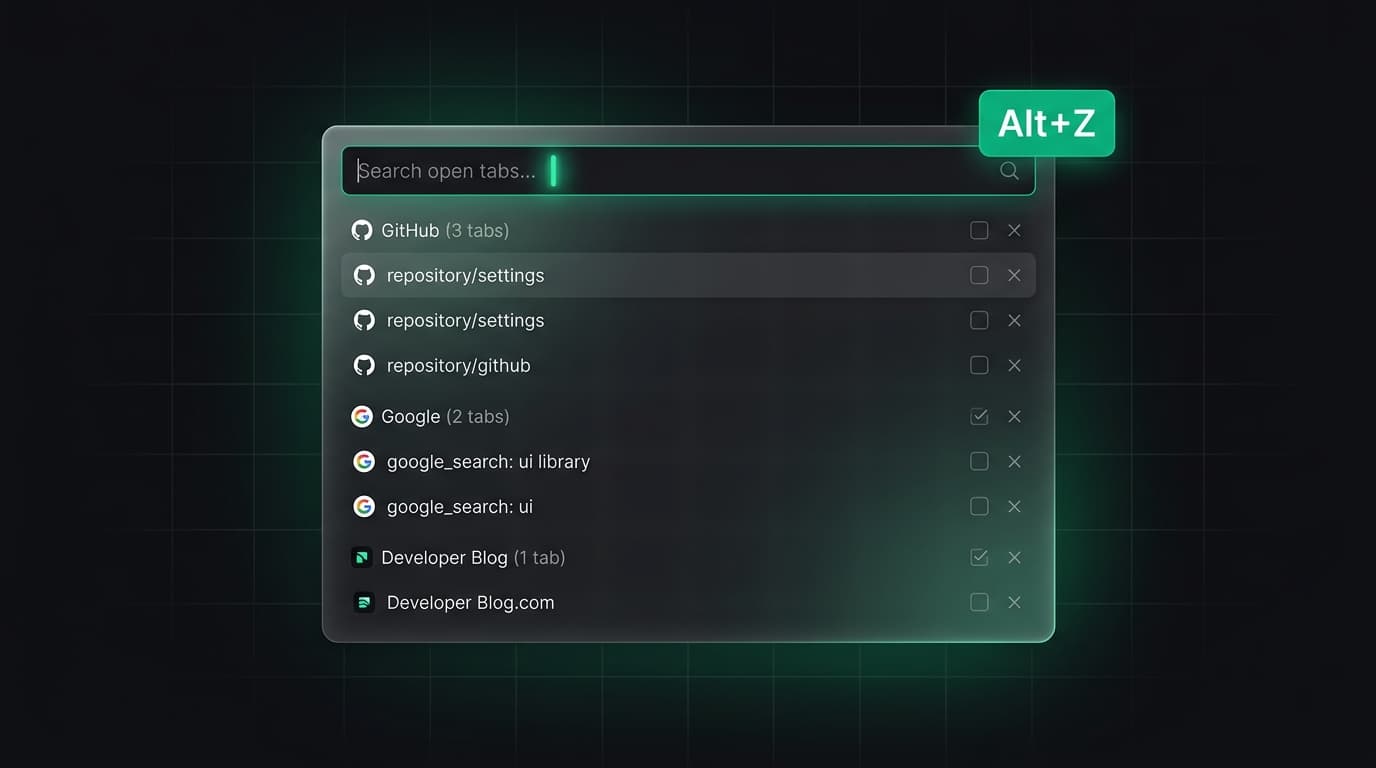
You can always click an individual saved web source. Internal browser addresses, such as settings pages, are not ordinary HTTP or HTTPS sources. A list containing only unsupported addresses has nothing the bulk action can open.
2. Enable or update the extension
Expand Enable tab groups in Sources. Open your browser’s Extensions page, locate Tabzero and make sure it is enabled. For a development build, reload the extension after updating its files. Also check that the extension is allowed to run on your workspace site.
Reload the workspace page, then use Check connection. An older extension can respond to a connection check without supporting the newer grouping command. The panel then asks for an update instead of presenting a group button that cannot work.
3. Check the browser’s pop-up permission
Without the extension, opening multiple sources relies on the browser’s window-opening rules. The browser may allow the first tab and block the rest. Tabzero reports how many opened and how many remain; it does not count a blocked window as a success.
Allow pop-ups for the workspace site to retry, or open links individually. Retrying in the same panel skips sources it already opened. Closing and reopening the panel or reloading the page can reset that temporary record.
4. Check what happened to the original group
During the same browser session, the group action reuses the tracked group and adds missing sources. If only the note tab was closed, it can put the note back alongside its sources. A source that navigated to another address can be reused while its tracked tab remains in the group.
A browser restart can clear the temporary group association. Creating a new group after a restart is different from duplicating a workspace note: the saved identifier and source records remain the same. Group tracking is not a backup of browsing history.
If the note itself is unavailable
Confirm that you opened the correct account or the same guest browser workspace. A URL does not grant access to another account’s note. Return to the workspace and check that the document exists before attempting to restore sources.
If the action reports an error after some tabs appeared, inspect those tabs before retrying. When reporting a problem, include the button label, connection status and whether it happened before or after restarting the browser. These details help distinguish a missing connection from a missing document.
Tabzero: Browser Tab Manager & Notes
Save tab links, keep notes beside your sources, and return to what matters. Tabzero is in development preview; AI Notes remains planned.
Related guides
Organize Competitor SEO Research with Browser Tab Groups
Compare competitor pages, search intent, evidence, internal links, and content gaps with a fair browser-tab research structure.
Chrome Tab Groups API: Group Tabs and Manage Their State
Learn how chrome.tabs.group and chrome.tabGroups work together, when group IDs expire, and how to recover from group changes.
How to Save Open Tabs Before Restarting Chrome
Save the tabs that matter before a Chrome restart, record the task context, and verify what can and cannot be restored afterward.