
How to Find and Close Duplicate Chrome Tabs Safely
Two Chrome tabs can look identical while holding different drafts, logins or navigation history. Use search to find likely duplicates, inspect the content, and close only the copies you no longer need.

Search for likely duplicates by site or title
Open Chrome Tab Search from the tab strip or press Ctrl+Shift+A on Windows and Linux, or Command+Shift+A on Mac. Search for a domain, article title or distinctive document name. This narrows a crowded browser to the tabs likely to be repeats.
Tab Search helps you locate candidates; it does not certify that two tabs contain the same state. A page may have a tracking URL, an updated version or a different account behind the same visible title.
Compare the state before closing either tab
Open each candidate and check for unsent forms, unsaved editor changes, a different signed-in account, comments or a distinct place in the page. If a draft is present, save it in the website first. URL equality is not proof that the two browser tabs are interchangeable.
For reference pages, compare the visible title, URL path and any version indicator. Keep the canonical or most relevant page for the task. A release-specific documentation page and the current overview are not duplicates even if they share a domain.
Preserve the task, then remove repeated links
If several copies were opened while researching one question, save the useful source once and add a note saying why it matters. A concise note such as 'Use the API migration page for the deployment checklist' is more valuable than three copies of the same URL.
When using Tabzero, select the sources you actually want in the note and review the saved source list before closing browser tabs. The extension keeps original tabs open after saving selected links, giving you a chance to verify the result.
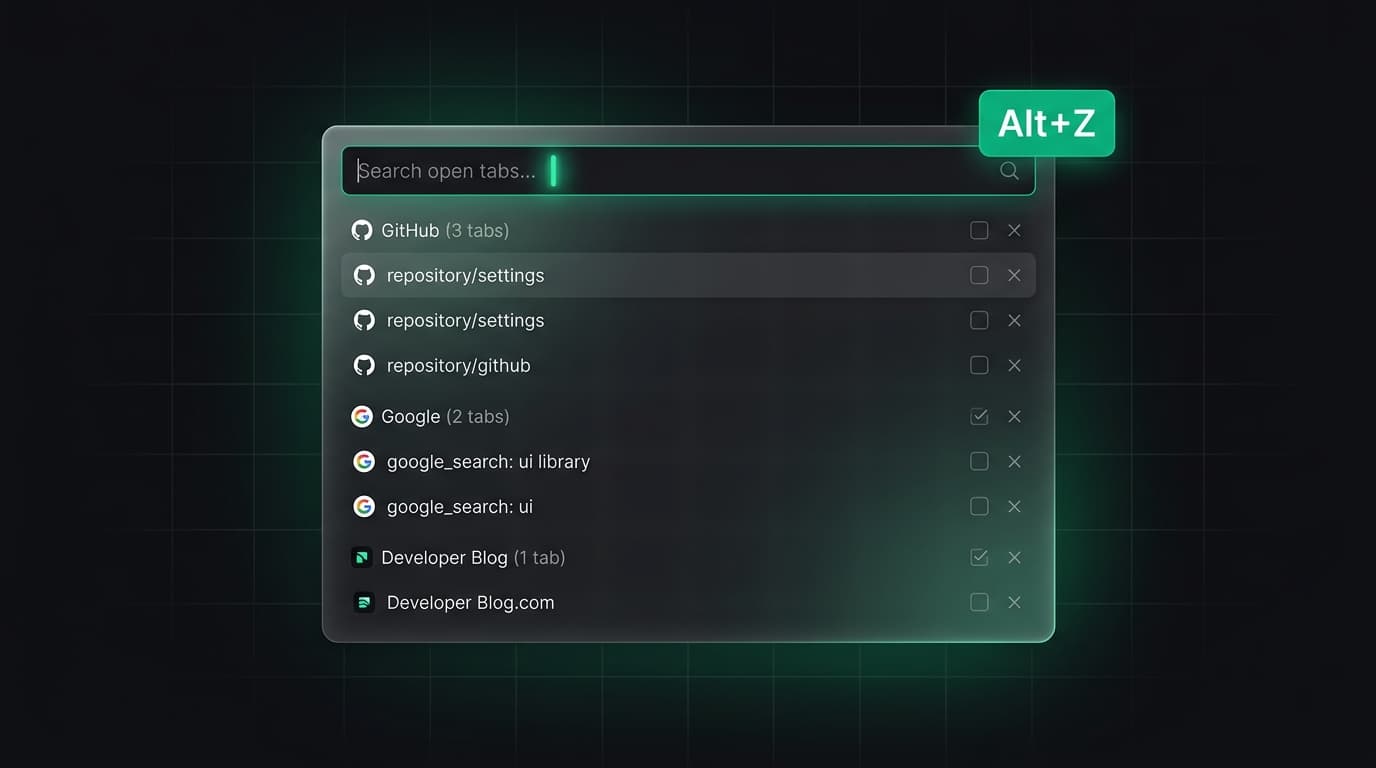
Close in small batches
Start with one clearly redundant tab. Confirm the remaining page and any saved note still open correctly. Then close the next few. Chrome supports selecting multiple tabs and closing them together, but bulk closing is better reserved for pages you have already reviewed.
If you close the wrong tab, Ctrl+Shift+T on Windows and Linux or Command+Shift+T on Mac can reopen recently closed tabs in order. Reopening a URL still may not recover a draft or temporary application state.
Prevent the next duplicate pile
Before opening a search result that looks familiar, search your open tabs by domain or title. Keep active pages in a named group, durable references in bookmarks and paused projects in a saved session with a resume note.
A weekly review works better than waiting for an emergency cleanup. Identify completed tasks, verify that important work is saved and close their tabs. Keep only the sources that still support a current decision or next action.
Tabzero: Browser Tab Manager & Notes
Save tab links, keep notes beside your sources, and return to what matters. Tabzero is in development preview; AI Notes remains planned.
Related guides
An End-of-Day Browser Tab Shutdown Routine
Finish the workday by saving useful sources, recording next actions, and closing browser tabs without losing project context.
Browser Tab Organization: Saved Sources and Note Graphs
Understand duplicate tab links, related sources and note graphs in Tabzero. Learn how to review connections and organize references without losing context.
How to Organize Many Chrome Tabs into Groups Fast
Turn a crowded Chrome window into a few useful tab groups with bulk selection, clear names, duplicate cleanup, and a repeatable maintenance routine.