
Create, Move, Update, and Close Chrome Tabs Safely
Tab actions are easy to call and easy to over-automate. A good extension distinguishes opening a link, focusing an existing tab, rearranging a workspace and closing a page that may contain unsaved work.

Create and update with a clear target
chrome.tabs.create({ url }) opens a new tab and resolves with a Tab object. chrome.tabs.update(tabId, { active: true }) activates an existing tab; updating its URL navigates it away from the current page. Choose between those behaviors explicitly so a 'reopen source' button does not destroy a draft in an existing tab.
For a saved source list, opening new tabs is usually easier to explain. If you want to reuse an existing tab, match it by a reviewed URL and show the person which tab will be focused or navigated. Do not assume two URLs with different query parameters are interchangeable.
Move tabs without assuming the window is static
chrome.tabs.move(tabIds, { windowId, index }) moves tabs within or between normal windows. The index is a position in the destination tab strip, and -1 appends at the end. Chrome notes that a move can fail while the user is dragging a tab.
Read the current window and tab order immediately before the move, then handle rejection. If an extension groups or moves several tabs, verify the resulting window and order instead of declaring success after the first Promise resolves.
Treat removal as a consequential action
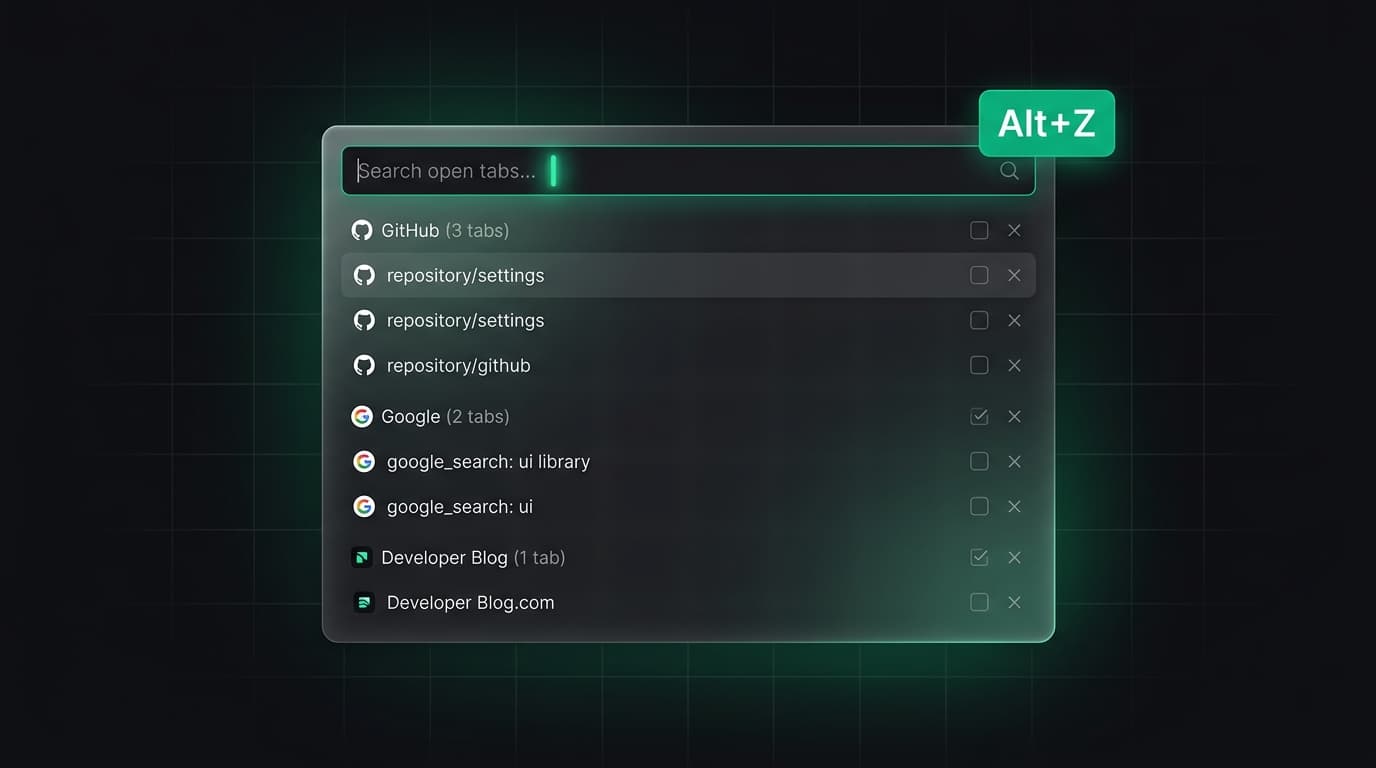
chrome.tabs.remove(tabIds) closes one or more tabs. It does not promise that a web form, editor buffer or transient login state has been saved. A tab manager should make the selected targets visible and offer a chance to cancel before bulk closure.
A safer save-and-close flow is: collect the selected URLs, persist the source record, verify it can be read, then ask to close the same tab IDs. Re-check that the targets still point to the intended pages, because tabs can navigate between selection and closure.
Handle partial success
A batch may create several tabs before a later call fails, or move some tabs before the window closes. Keep a per-tab result with succeeded, failed and skipped states. Retrying should target only the remaining work, not duplicate what already opened.
If an operation fails because a tab no longer exists, report that fact and refresh the inventory. Rejected Promises are normal in a browser where the user can act at the same time as the extension.
Idea: reviewable workspace restore
Build a restore preview that lists saved URLs, marks ones already open and lets the person choose the destination window. Open a small first batch, show the result and allow the rest to continue. This is easier to recover from than opening dozens of tabs at once.
The same preview can skip unsupported internal URLs and warn that reopened pages may require sign-in. It should never promise that browser memory or unsaved form data will return.
Verify with a realistic scenario
Test one page, multiple pages, a page that changes URL during review, a tab closed by the user and a destination window that closes before a move. Confirm the displayed result matches the actual tab strip.
Keep navigation, selection and removal as separate commands in the interface. Clear labels prevent accidental destructive actions more effectively than clever retry code.
Tabzero: Browser Tab Manager & Notes
Save tab links, keep notes beside your sources, and return to what matters. Tabzero is in development preview; AI Notes remains planned.
Related guides
How to Test Browser Extension Tab Workflows End to End
Build a repeatable test matrix for tab races, denied permissions, worker restarts, multiple windows, and partial restores.
Chrome, Firefox, and Safari Tabs APIs: A Compatibility Plan
Compare extension tab APIs across browsers by permission, API support, packaging, and realistic test cases before porting.
Chrome captureVisibleTab: Screenshots, Permissions, and Privacy
Understand what captureVisibleTab captures, its permission and rate limits, and how to build a user-reviewed screenshot flow.