
Chrome Side Panel API for Tabs and Notes: A Practical Design
A popup is useful for a quick command. A side panel can stay beside the page while someone compares sources or writes a note. Chrome's sidePanel API makes that interface possible, but the extension must decide whether the panel belongs to a window or one tab.

Know what the side panel provides
The sidePanel API hosts an extension page alongside the main webpage and requires the sidePanel manifest permission. Chrome documents support from version 114 for Manifest V3. The panel can persist while a user navigates between tabs when configured to do so, and it can be enabled only for selected sites.
A side panel is an extension page with access to extension APIs, not a content script running inside the website. If it needs page content, it still requires an allowed page-access path such as messaging or on-demand scripting.
Choose global or tab-specific behavior
A global panel follows a window-level workflow such as a project note list. A tab-specific panel can show a source annotation for only one page. chrome.sidePanel.setOptions() configures the path and whether the panel is enabled, optionally for a tabId. Make the scope visible so switching tabs never appears to silently rewrite the user's note.
When a panel is disabled on a site, Chrome may close it while the user navigates there. Keep draft note text in appropriate storage before changing the enabled state. The panel's open state should not be the only copy of a draft.
Open it through a user action
Chrome allows the toolbar action to toggle the panel through sidePanel.setPanelBehavior({ openPanelOnActionClick: true }). sidePanel.open() can also open it after a user interaction and needs a windowId or tabId target. It is not a background auto-popup mechanism for every navigation.
Use a clear action such as 'Open project notes beside this page'. If the user already has another panel open, explain what will replace it. Avoid opening the panel unexpectedly after every tab activation.
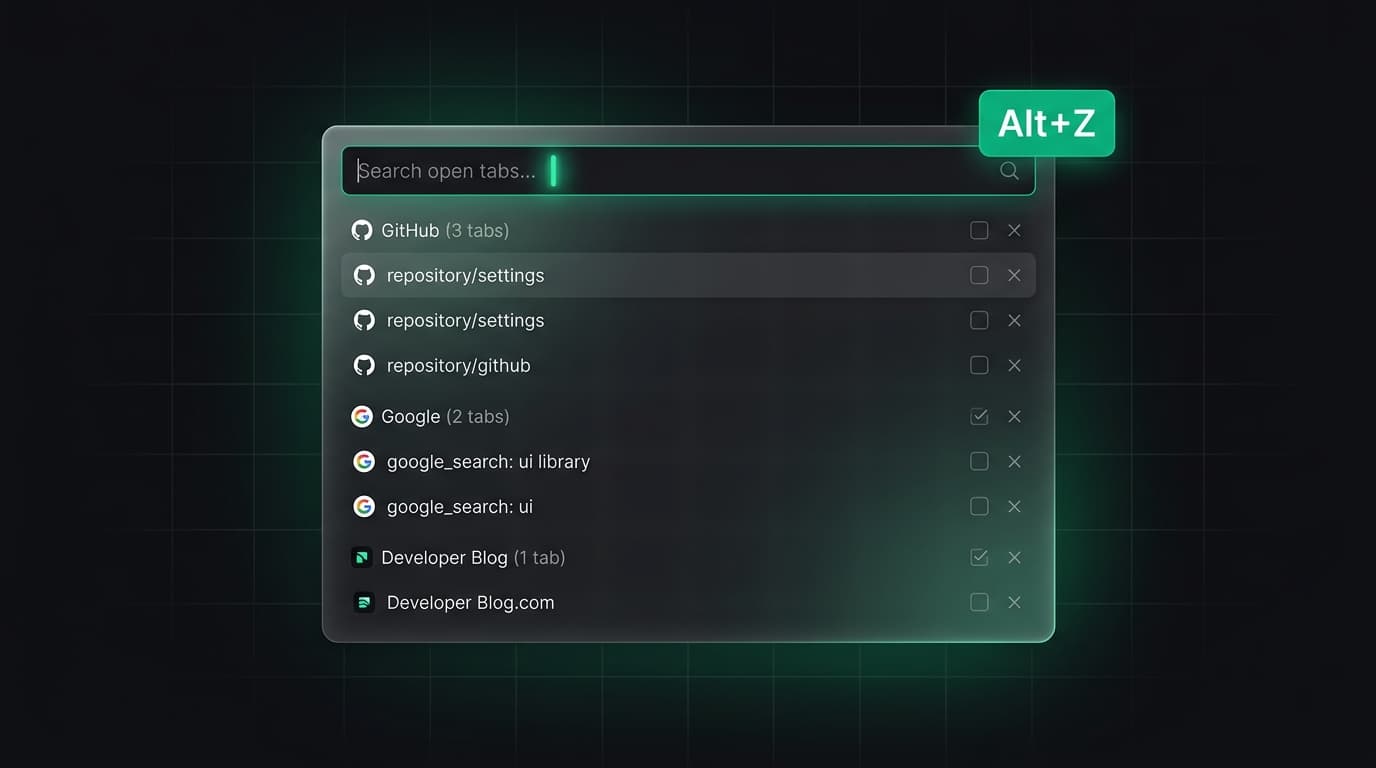
Design for narrow width and keyboard use
Show the current task, selected source and next action first. A long tab inventory can use search and selection rather than a dense grid. Keep buttons reachable by keyboard, use visible focus states and make the relationship between source and note explicit.
A popup can still handle a one-click save. Use the side panel for work that benefits from persistence: checking several sources, writing a short rationale or reviewing what was saved. This division keeps both surfaces simpler.
Idea: a source-and-note companion
Let the user open the panel for a project, select one open tab and write why that page matters. When the active tab changes, show the new page as a candidate while leaving the current project note intact until the user chooses to attach it.
Include a visible Save status and a way to open the note in a full browser tab for longer writing. This gives the user a compact companion without trapping the work in a small panel.
Test window and navigation changes
Test two windows, a tab-specific panel, a disabled website, rapid tab switching and a browser restart. Confirm which note remains selected, which draft is persisted and whether a panel opens in the intended window.
Measure behavior with a keyboard and narrow viewport. A panel that works only with a mouse or loses the active note on navigation will not help the browsing workflow it is meant to support.
Tabzero: Browser Tab Manager & Notes
Save tab links, keep notes beside your sources, and return to what matters. Tabzero is in development preview; AI Notes remains planned.
Related guides
How to Test Browser Extension Tab Workflows End to End
Build a repeatable test matrix for tab races, denied permissions, worker restarts, multiple windows, and partial restores.
Chrome, Firefox, and Safari Tabs APIs: A Compatibility Plan
Compare extension tab APIs across browsers by permission, API support, packaging, and realistic test cases before porting.
Chrome captureVisibleTab: Screenshots, Permissions, and Privacy
Understand what captureVisibleTab captures, its permission and rate limits, and how to build a user-reviewed screenshot flow.